Creating a working domain
Overview
1. Launching the "Settings" application
1.1) Open a browser and enter the server IP address in the address bar.
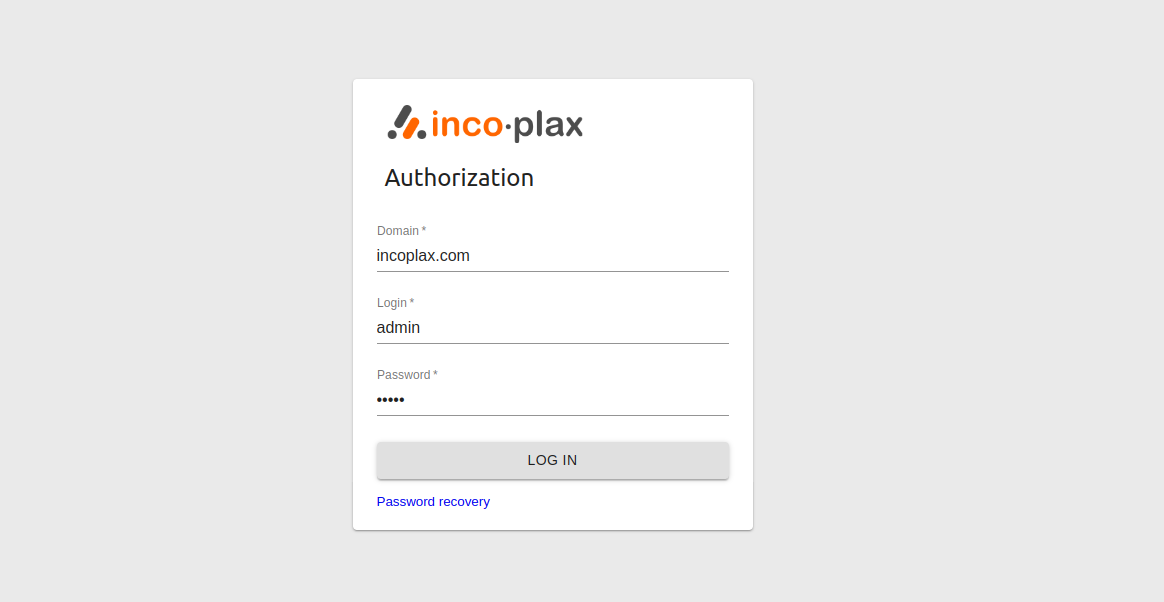
1.2) Log in to the master domain specified during installation on the master server in step 7 under the admin account with the same password:
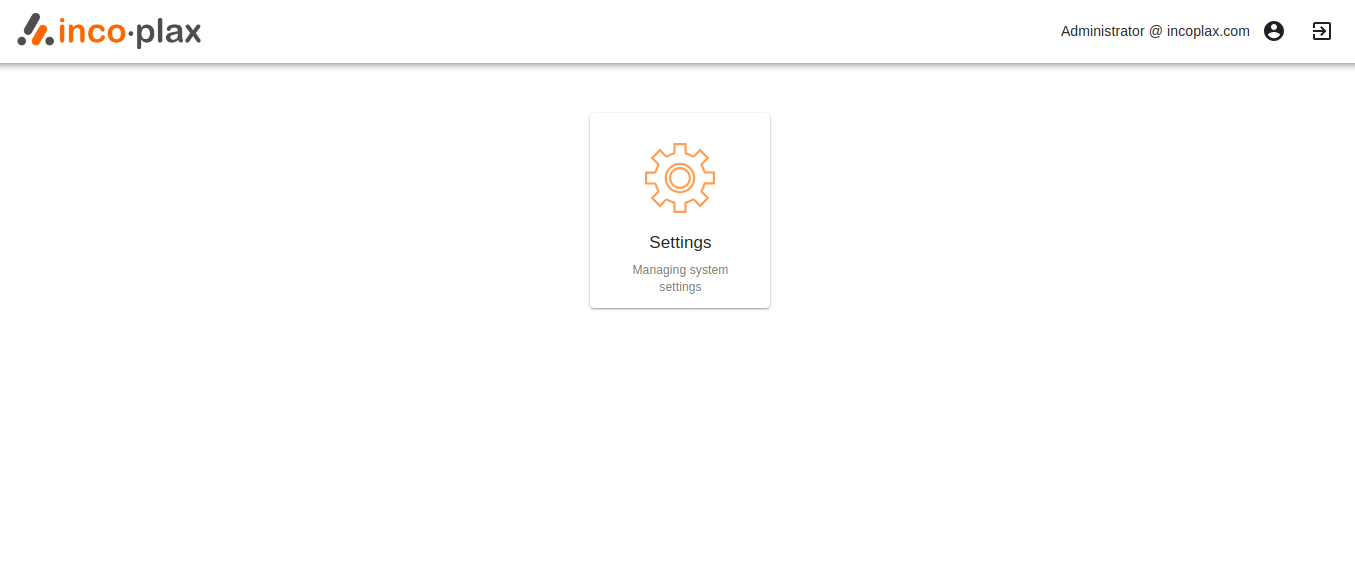
1.3) Launch the "Settings" web application:
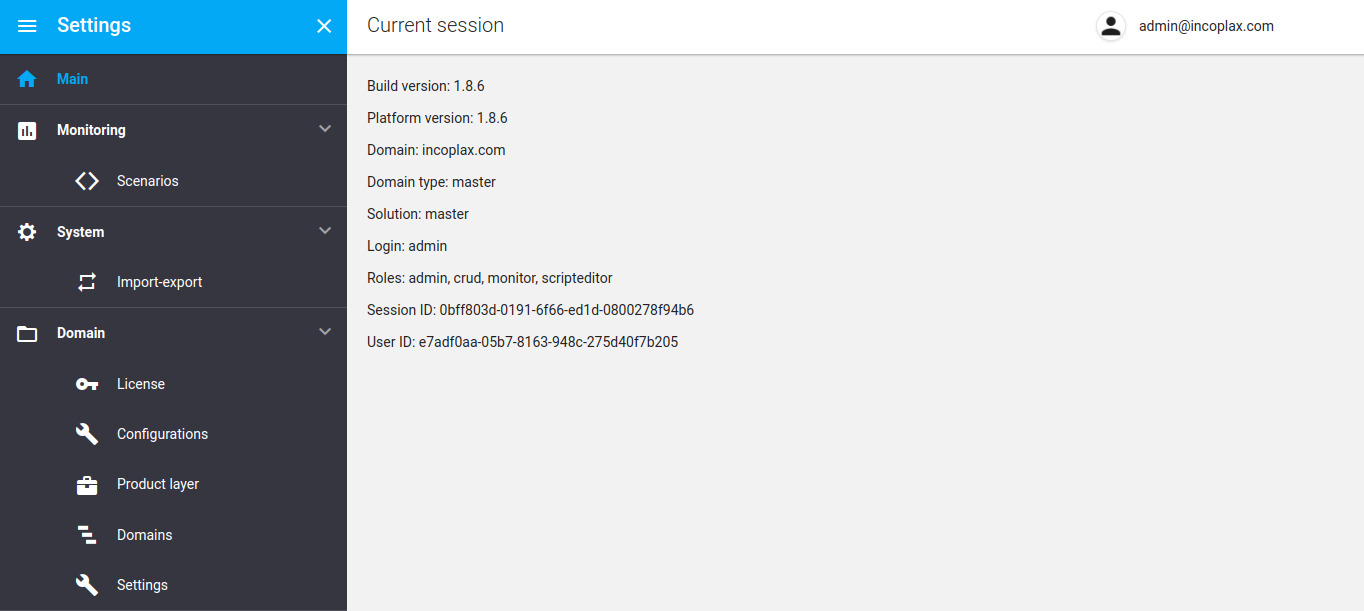
2. Creating a domain
Open the "Domains" section in the left menu, click "Add", and enter the domain name:
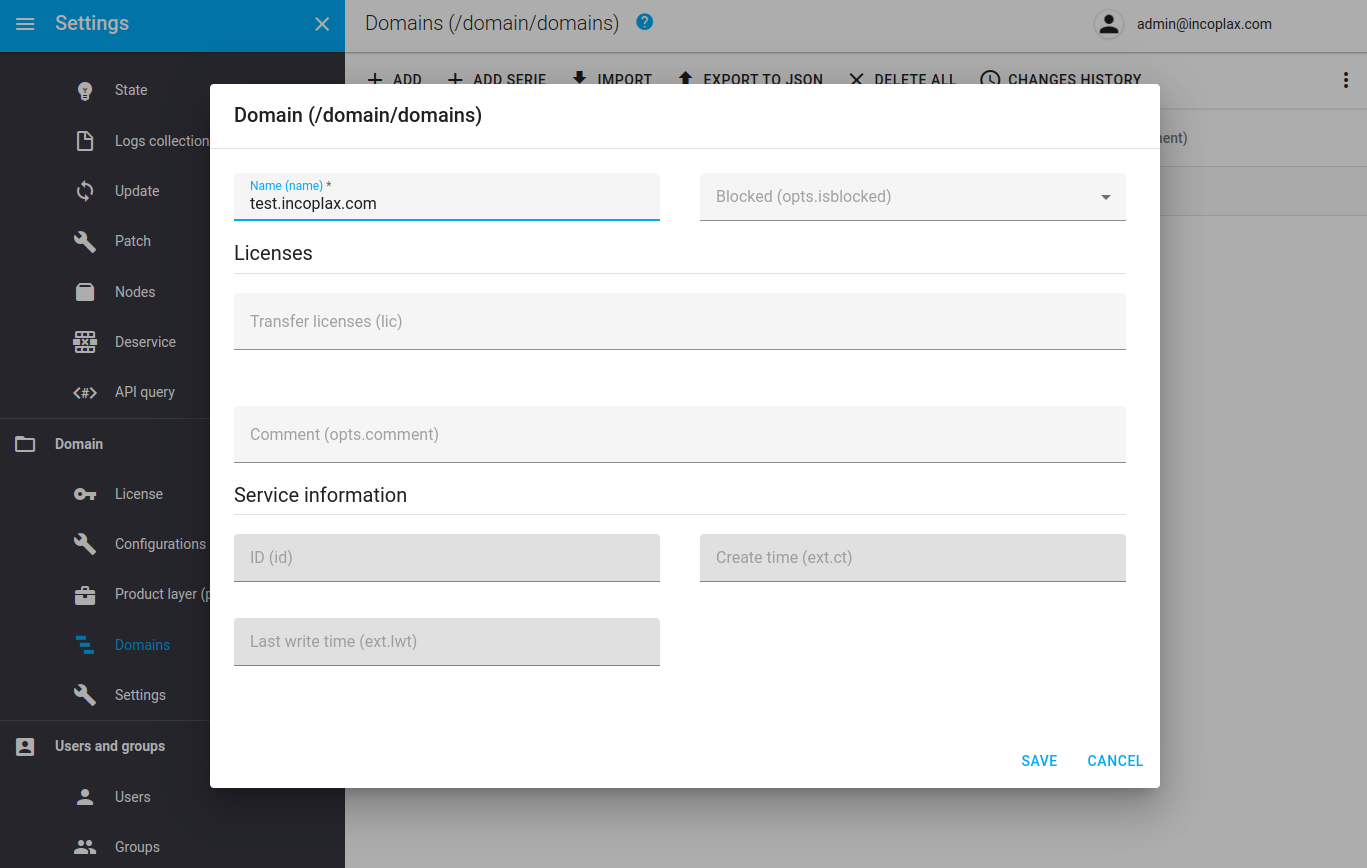
Save the domain.
3. Transferring quantitative licenses
3.1) Open the "Licenses" section in the left menu and assign the required amount to the created domain. If the callcenter_supervisor and callcenter_operator parameters are present in the license, transfer them to the child domain.
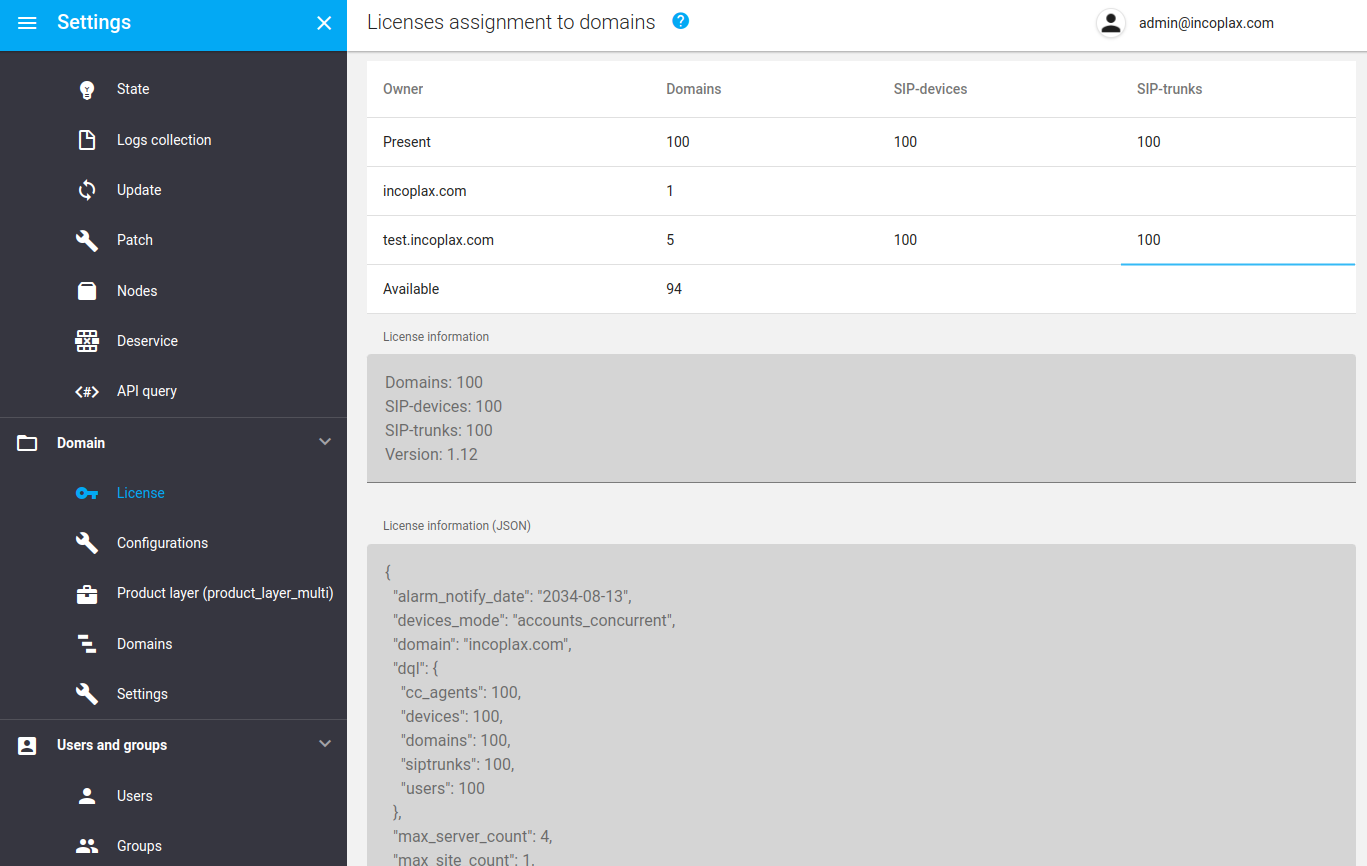
3.2) Refresh the page (for example, by pressing F5).
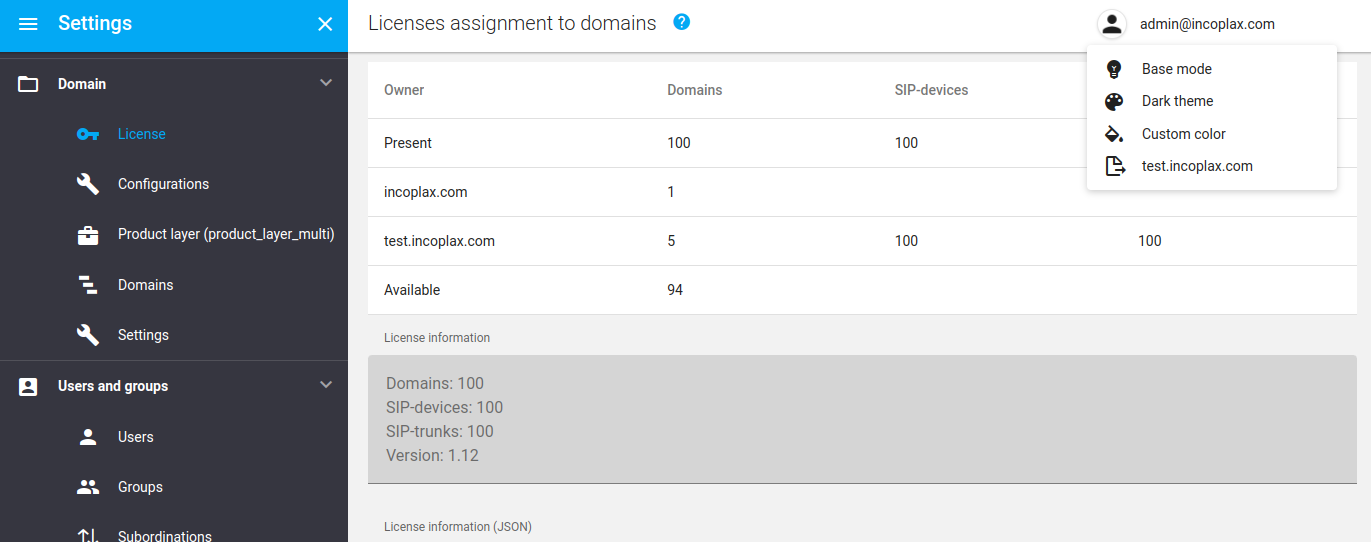
3.3) Switch to the created domain:
3.4) Open the "Licenses" section in the left menu and reserve part of the licenses transferred from the parent domain for use in the domain (if the callcenter_supervisor and callcenter_operator parameters are present in the license, reserve them):
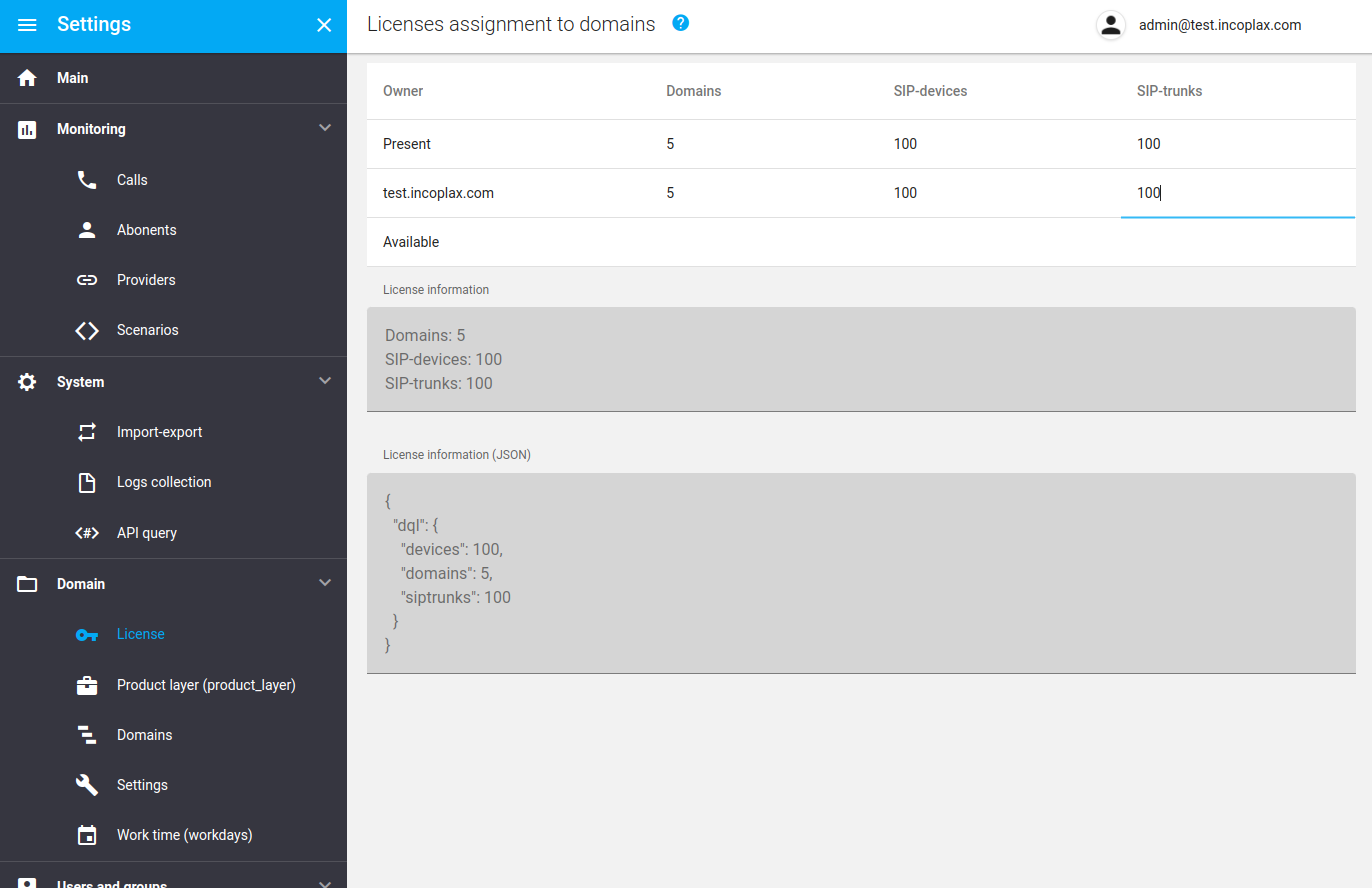
The domain is created and ready for configuration!
Now you can log in directly to it by entering its name in the login window.
Child domains can be created in any domain of any level. To do this, the domain must have enough licenses reserved for creating domains.
To switch between domains, you can:
-
Log out and log in to another domain in the login window.
-
Switch to another domain via the menu in the header (works only when logged in as users for whom automatic cloning to child domains is configured in the master domain).