5. Appearance, domain and logout
Appearance theme, connector, switching to another domain, and logout.
Shelf menu
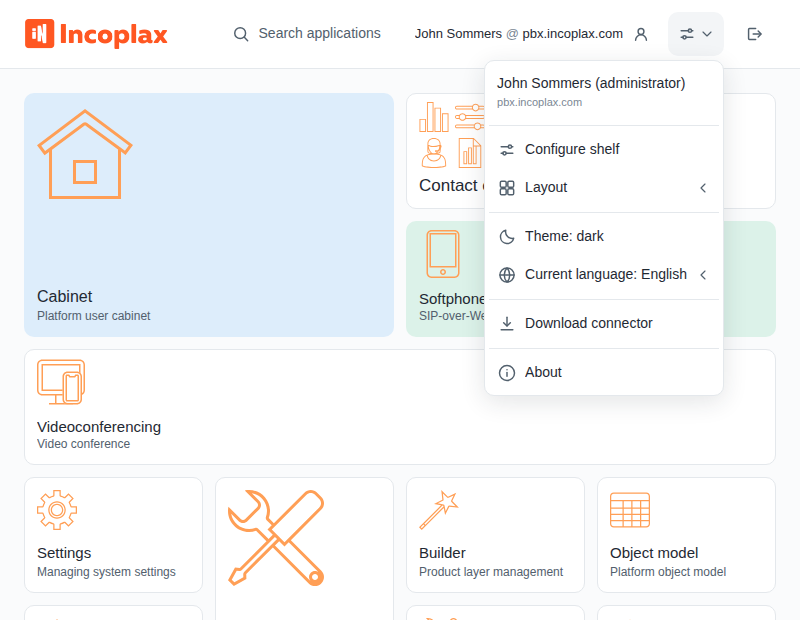
The menu is opened by the View button on the right side of the header. The shelf appearance and layout are stored in the domain: in a neighboring domain you have your own shelf and your own settings.
-
Configure shelf — see shelf configuration;
-
Layout — bento, grid, or list;
-
Theme — light or dark;
-
Language — interface language;
-
Download connector — see below;
-
Switch domain — on a narrow screen, where there is no separate button for this.
The shelf appearance and layout are stored in the domain: in a neighboring domain you have your own shelf and your own settings.
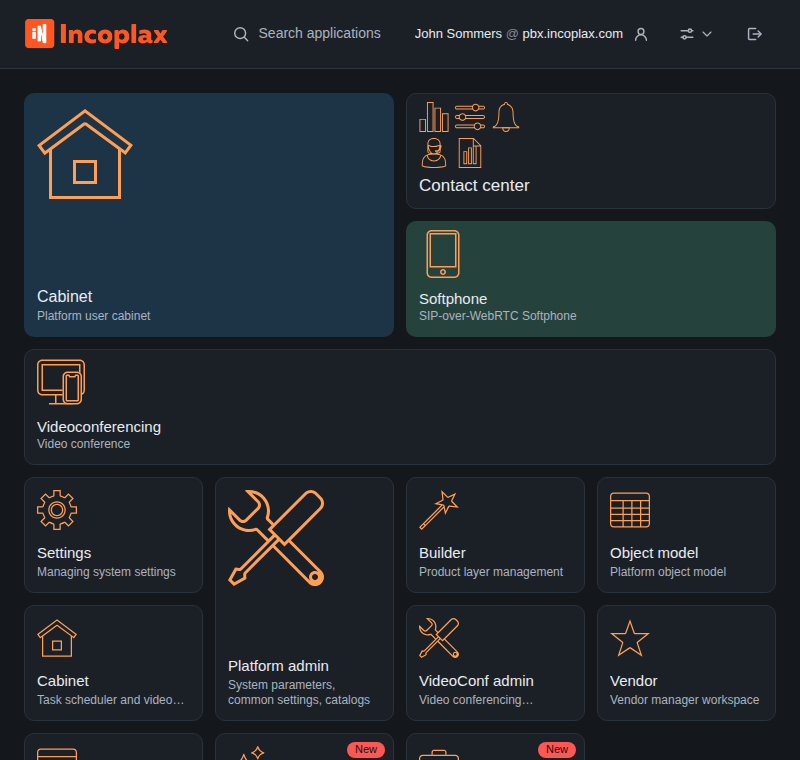
Connector
The connector is a file-page that you save and open instead of a bookmark to the platform.
It is needed when the platform has several addresses: for example, it is available both from the internal network and from outside. The connector checks the known addresses and opens the first one that responds.
To get the file, select Download connector in the menu. Put it on the desktop and open it instead of the platform address.
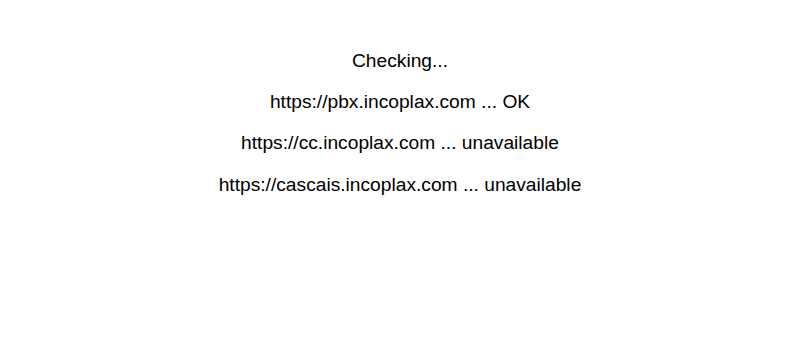
If none of the addresses responded, the connector says so and retries in a few seconds.
Domain switch
Click the Name @ domain row in the header — on a narrow screen the same item is in the View menu.
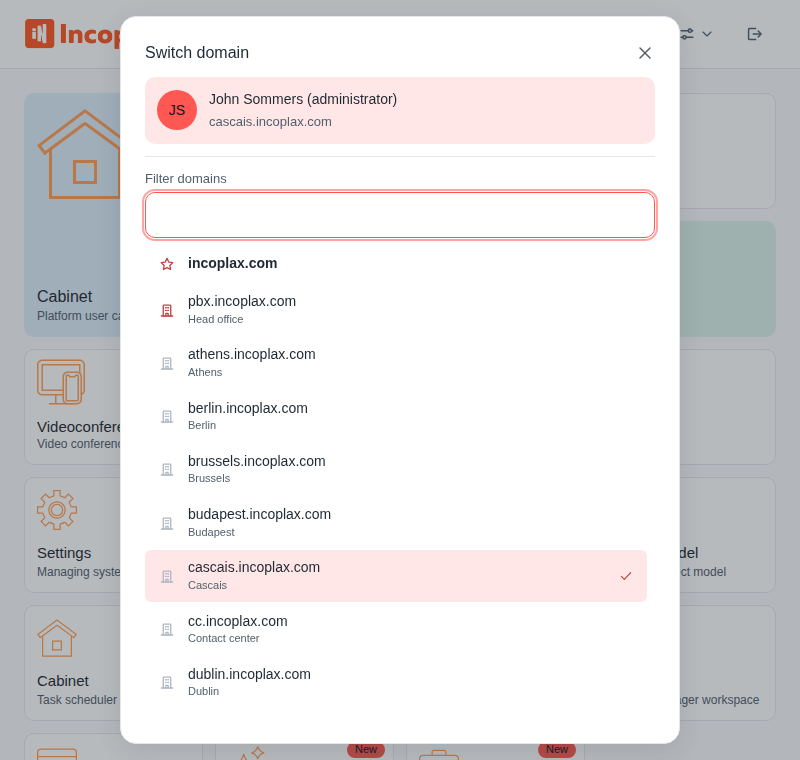
At the top — who you are and where you are now, below is the list of domains.
The master domain comes first, followed by domains from which you switched in this session; both have a brighter icon. The remaining domains are in alphabetical order. The current domain is marked with a checkmark and cannot be selected.
When there are many domains, a Domain filter field appears above the list.
Logout
The logout button is the rightmost in the header.
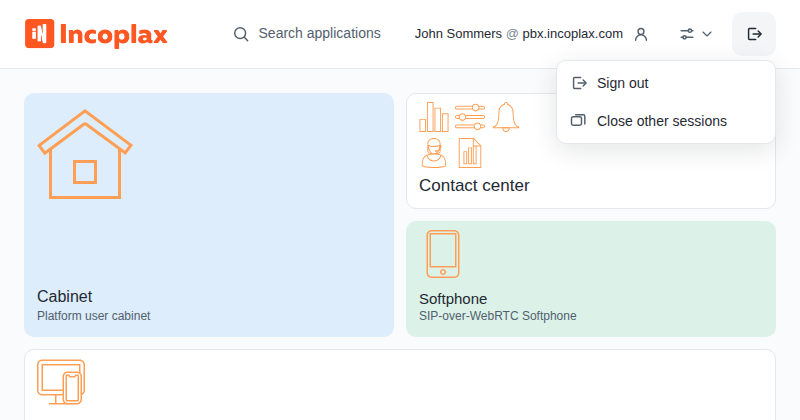
Logout returns to the sign-in window. The theme and language are preserved.
Close other sessions ends all your sessions except the current one: other tabs, browsers, and devices. Useful if you forgot to log out on someone else’s computer.