1. Sign-in
You can sign in with a password or via an external provider. What is available depends on your installation settings.
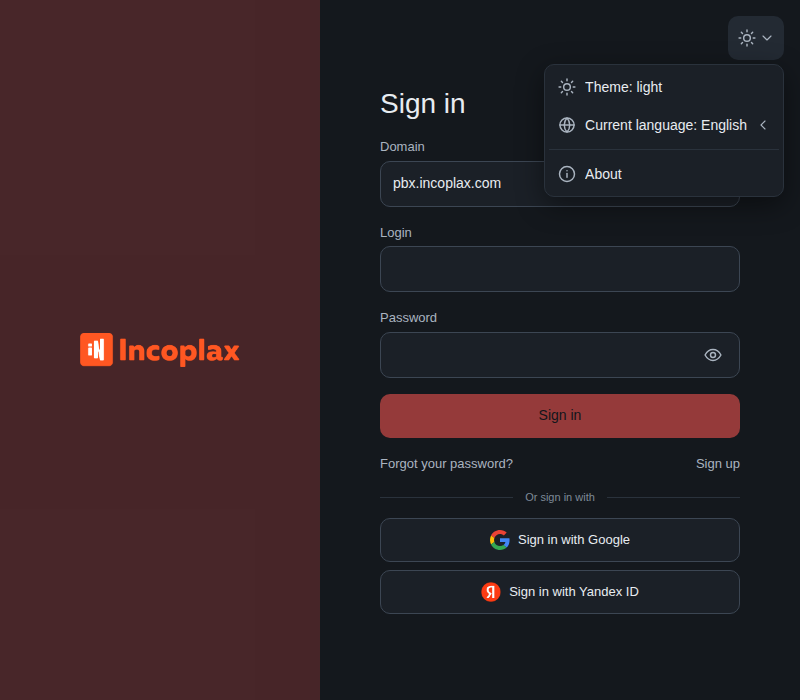
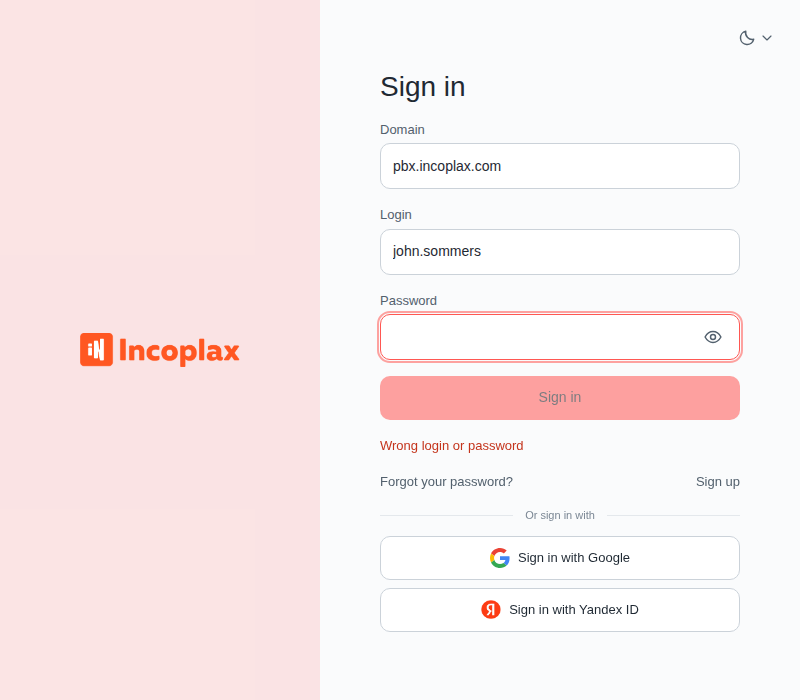
Sign-in window
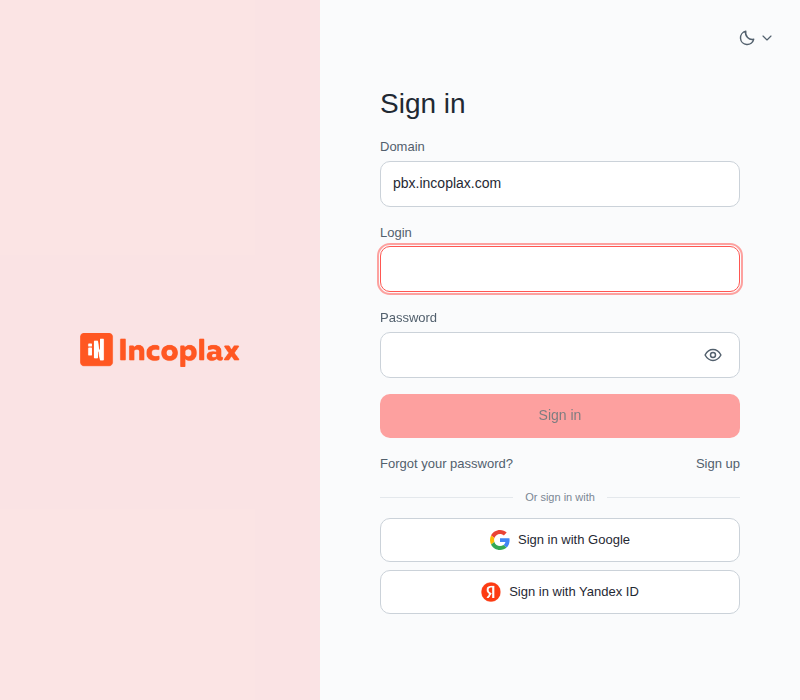
In any case you should log in to continue working with the platform. If there is an unfinished session, this step is skipped.
Domain
A domain is an organization or department in which your account is created. It is provided together with the login and password.
The field may be pre-filled: with the installation main domain or the domain from the address by which you opened the platform. If it is not your domain or the field is empty, enter your own.
Sign-in via external provider
Provider buttons are below the form. Clicking takes you to the provider page; after confirmation you return to the shelf. The domain does not need to be entered for such sign-in.
Sign-in window without fields
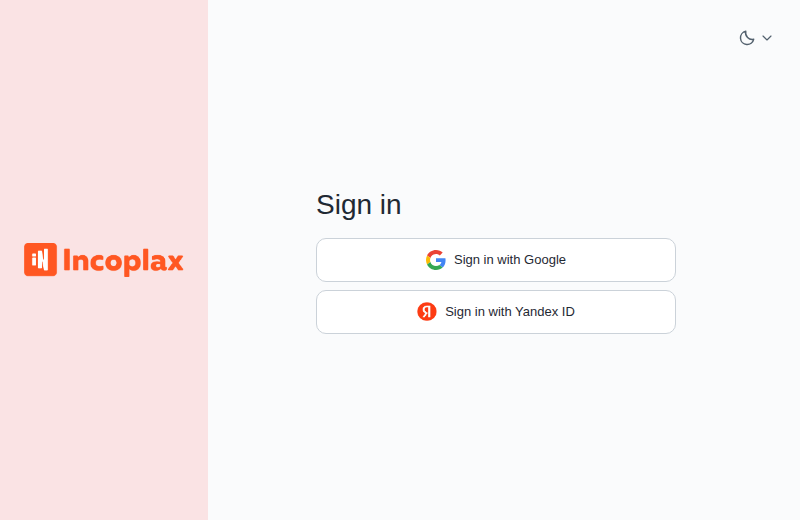
An installation may be configured so that sign-in is possible only via a provider. Then the window keeps the title and provider buttons, and there are no fields or links.
If there are no provider buttons in this case, there is no way to sign in — contact the system administrator.
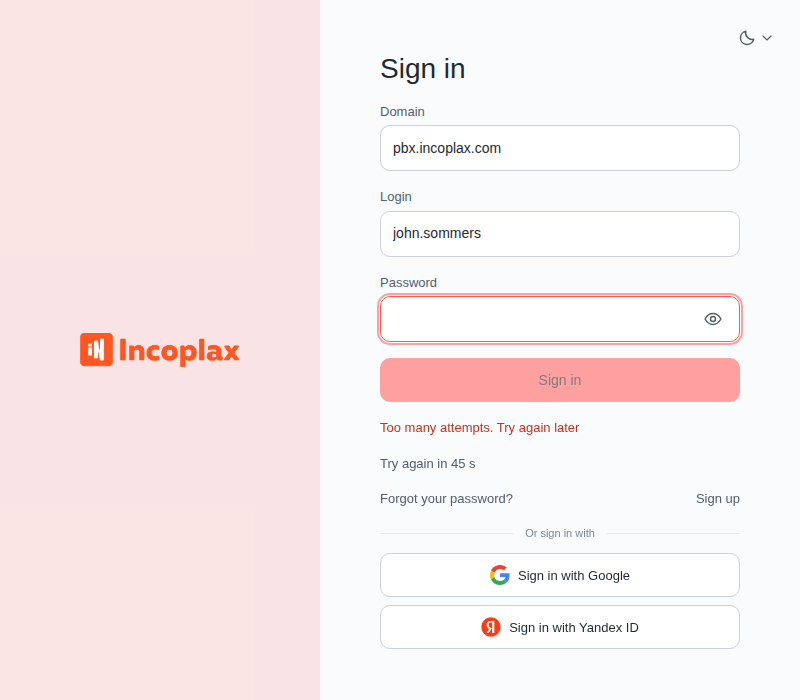
If sign-in failed
Domain not found
Check the domain spelling. If the domain is correct but the message appeared suddenly, tell the administrator — it may be worth checking the system state. Possible causes are within the competence of administrators and technical support and remain outside the scope of this guide.