2. Password, registration and invitation
Three scenarios arranged the same way: you submit a request, the platform sends an email, you follow the link from the email and set a password.
Forgot password
The Forgot password? link in the sign-in window opens the request form.
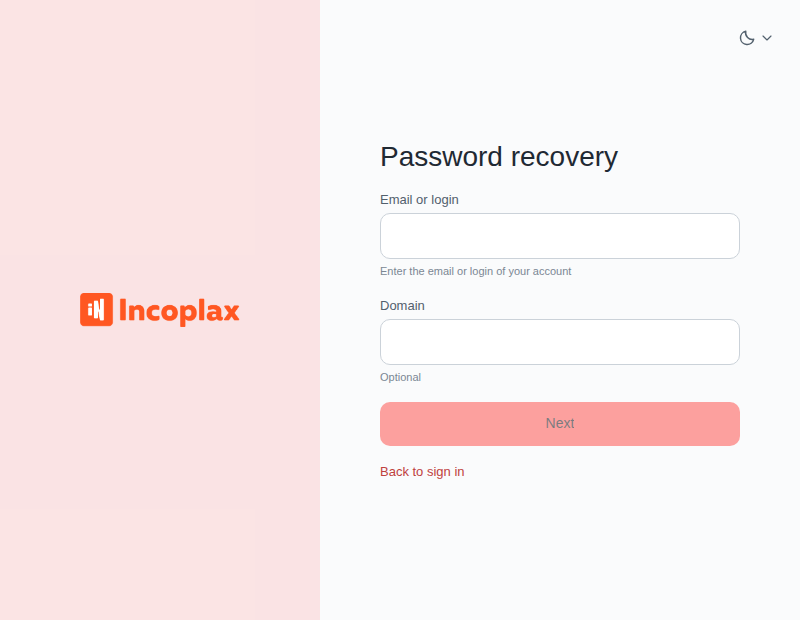
In the Email or login field enter what you remember.
Domain is required if you specified a login: logins in different domains may coincide, and the account is searched in a specific domain. With an email address the domain can be left empty.
Click Next. The action then moves to email.
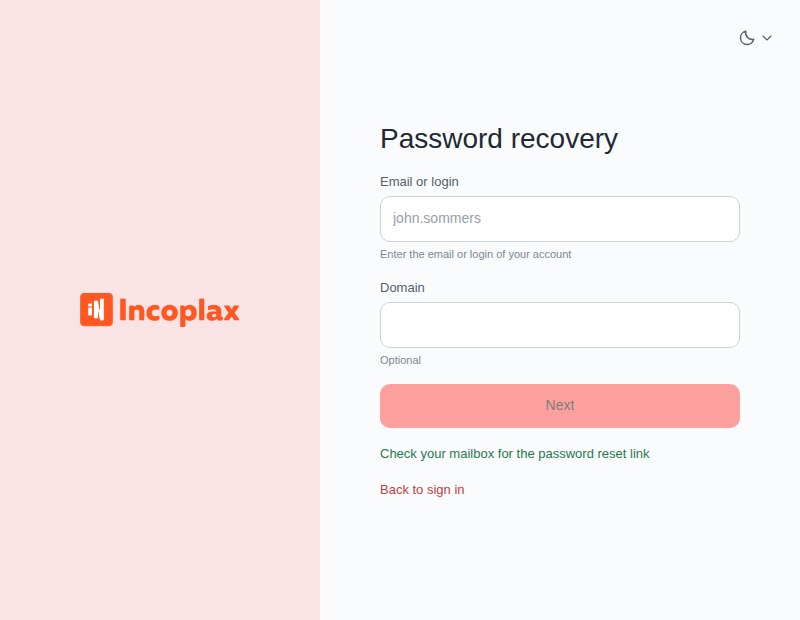
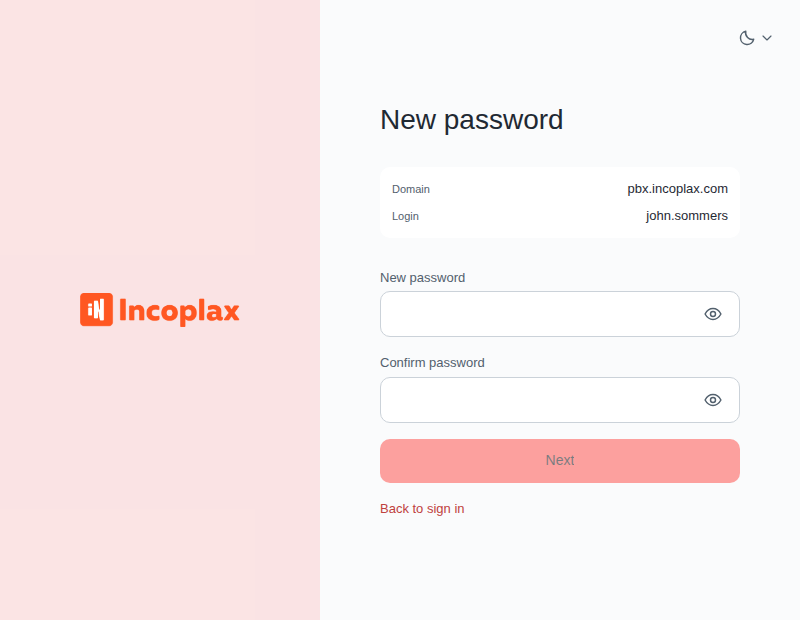
Self-registration
The Registration link in the sign-in window exists only if the installation allows self-registration. No link — accounts are created by the administrator.
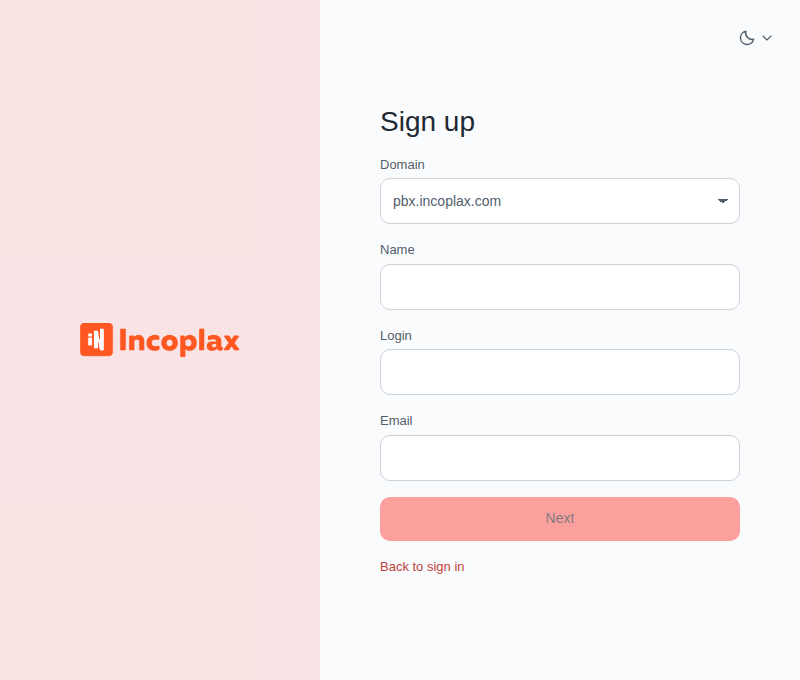
The domain is selected from the allowed list. Name, login and email are required — an email will be sent to that address.
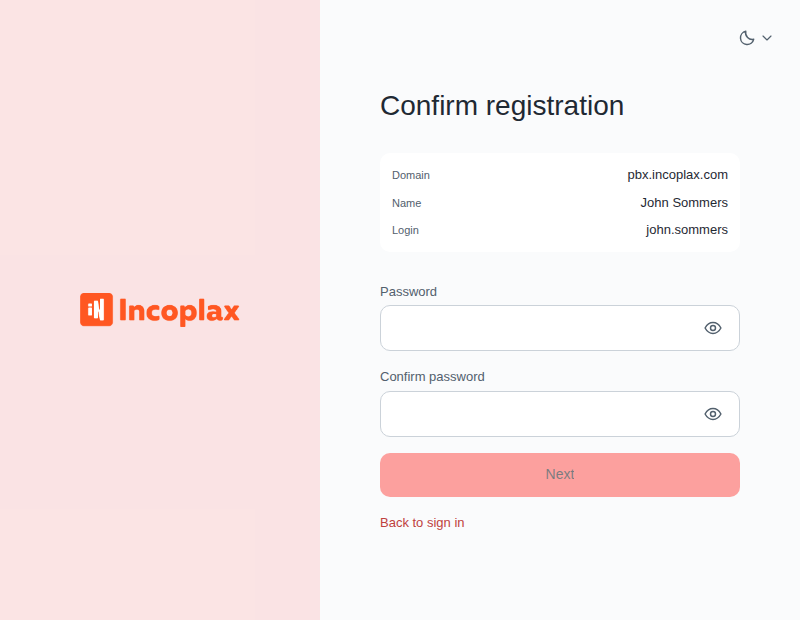
Invitation registration
The invitation is sent by the administrator. The link from the email opens a form: enter your name and choose a password. The domain is not asked here — it is set by the invitation.
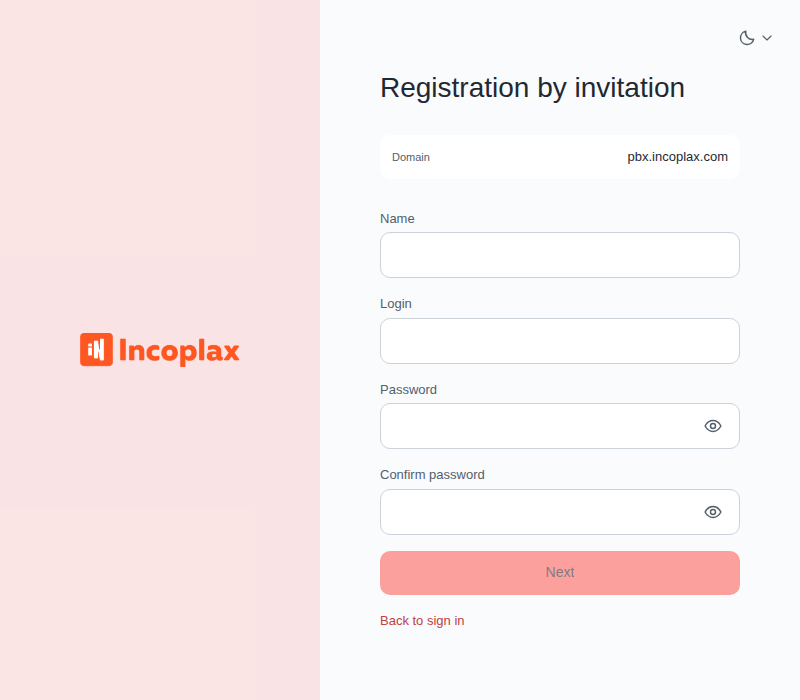
Password requirements
Password requirements are set by the domain administrator. If the password does not meet them, the platform shows the requirements — correct and retry.
If the email link does not work
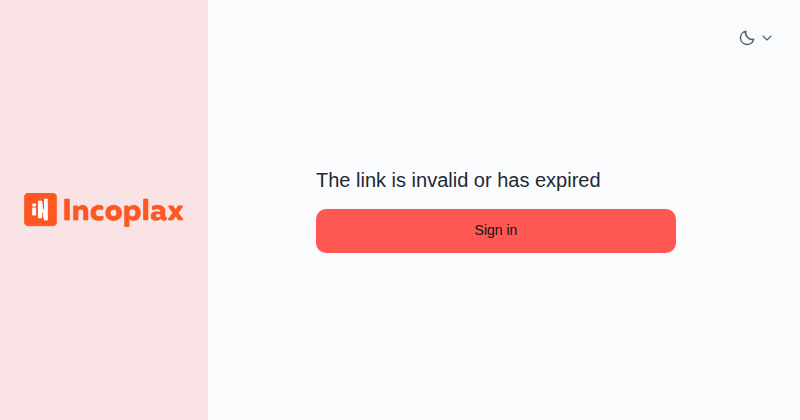
Links live for a limited time and work once:
-
the term expired — submit the request again;
-
the link was already used — sign in with the password you set;
-
the link was damaged during forwarding — follow it from the email program without copying manually.
If you did not submit a request but received an email, nothing needs to be done: without following the link nothing will change.