3. Application shelf
The shelf is what you see immediately after signing in. The set of tiles is determined by your account permissions and changes with them.
Application tile
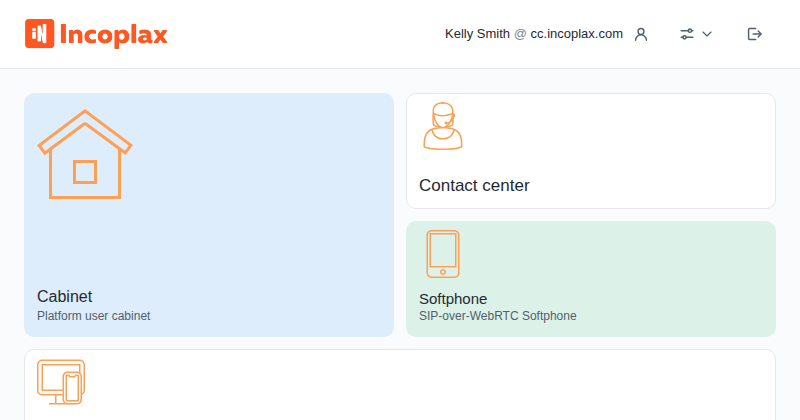
Icon, name, and description. The description helps distinguish applications with the same name: one installation may have two "Cabinets" — a personal cabinet and a video conference scheduler.
"New" label
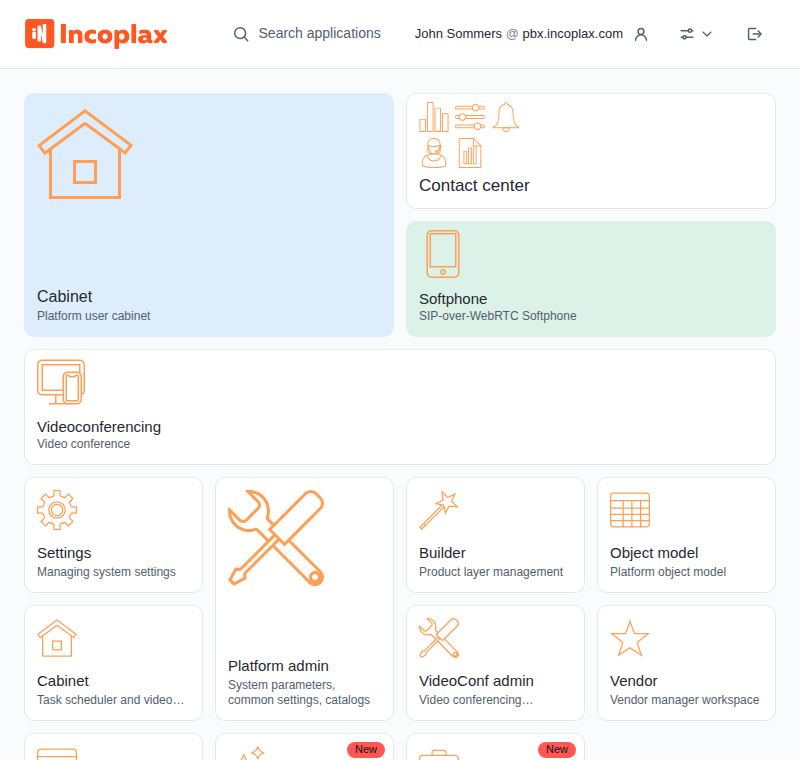
An application that appeared since your last visit is marked New and placed at the end of the shelf. The label is removed when you open it.
Launching an application
Click the tile. The middle mouse button or a click with Ctrl (on macOS — Cmd) will open the application in a new tab.
Application groups
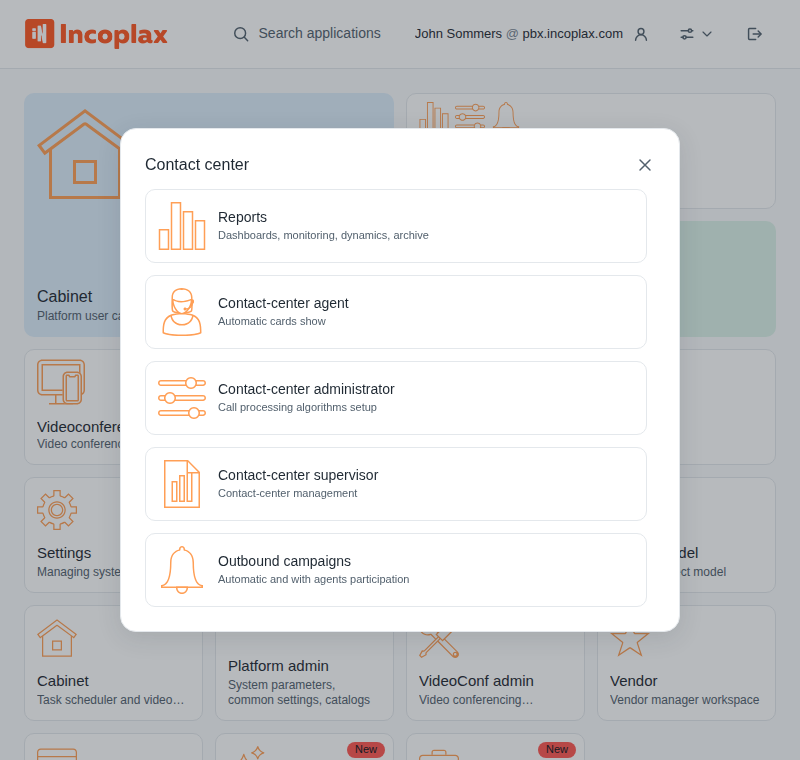
A group tile opens a window with a list. Clicking a row launches the application, Esc closes the window.
Groups come from the platform or are assembled by the shelf automatically when there are many applications. You can rename a group, disband it, or create your own in the shelf configuration.
Application search
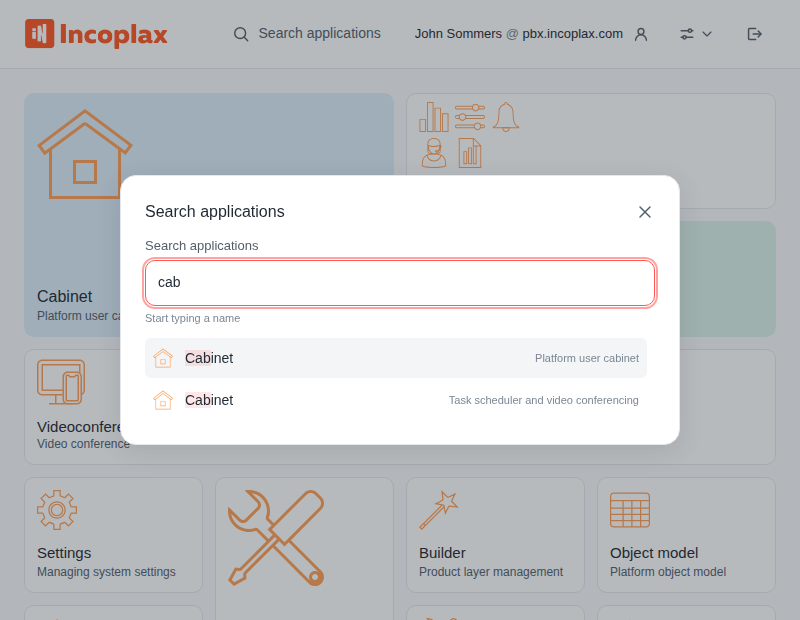
Opened by the Search applications button in the header or the Ctrl+K shortcut (on macOS — Cmd+K). Searches by name and description, including inside groups.
↑ and ↓ cycle through the results, Enter launches, Esc closes.
If there are no applications
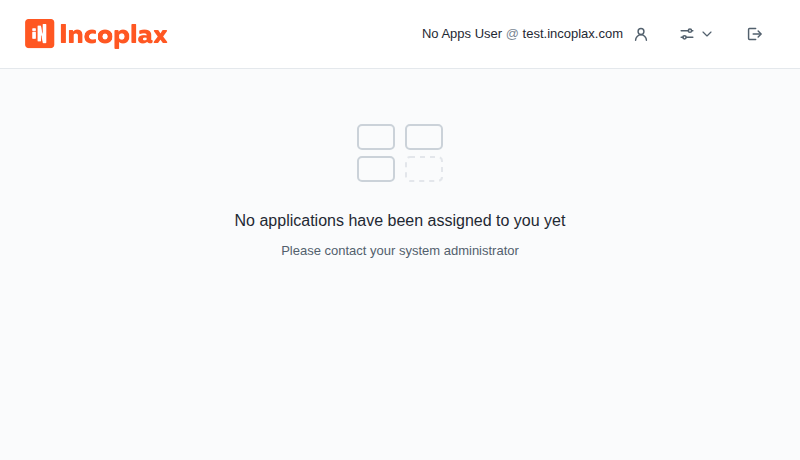
No applications have been assigned to your account yet. Contact the system administrator.