2. Files
Uploading, viewing, replacing, renaming, and deleting files. In sections opened for viewing only, such buttons are absent.
Upload
The Upload button or dragging files into the table. A whole folder can be dragged only into a tree section: a flat section has no nesting, and such a drop is rejected with an explanation rather than flattened into a list.
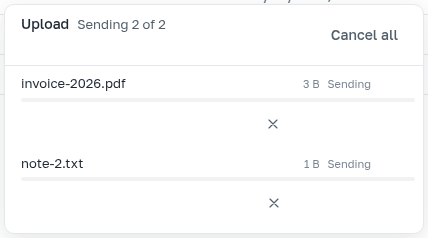
Files are uploaded three at a time; the rest wait their turn. What did not succeed remains in the queue with a reason and a retry button.
A name the server will not accept
Some operations are invoked by a suffix after ! in the address, so a file whose
name part after the last ! matches an operation name (for example
report!metadata or data!clear) would be unreachable. The server
rejects such names, and the application warns about them before sending. A name that simply contains
! — draft!2026.txt — is acceptable.
Besides the name, the size is checked before sending: a file at the section limit (512 MB) or larger is not sent to the server at all — the limit here is the first rejected value; the server will not accept exactly the limit file. An extension unusual for this section causes a warning — but not a prohibition.
What is shown about a file
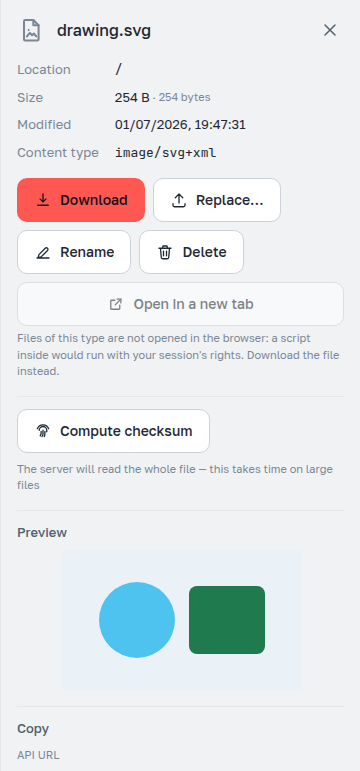
Size and modification time come from file metadata, content type — from a separate request.
Calculate checksum works on click: the server reads the whole file for this, and on a large file this is noticeable in time.
The Open in new tab operation exists only for types that execute nothing in the browser:
images (except svg), audio, video, pdf, txt.
An html, svg, xml page or a script would open with your session permissions,
so for them only download and text preview remain.
Preview
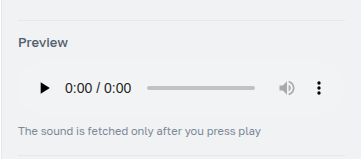
Audio is not downloaded until you press play — this is noticeable when you need to check one recording out of a hundred.
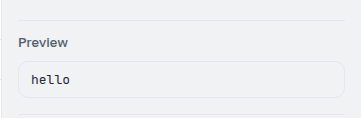
Text up to 1 MB is shown by the Show text button: the request is made only
then, not on every click in the list. It shows the text itself — html is not
rendered but visible as source. A file larger than a megabyte, a binary file
with a text name, and types that cannot be shown explain this in words.
Images, including svg, are shown as a picture immediately; clicking the picture
downloads the file.
Replace, rename, move
Replace… changes the file content while keeping the name. If the selected file is named differently, the application warns: outwardly this is uploading a new file, but in fact it changes the old one.
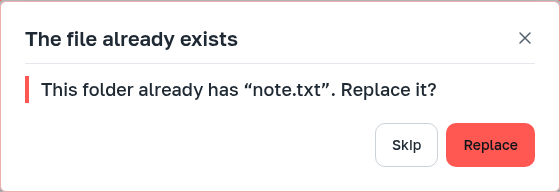
Rename validates the new name by the same rules as upload. A taken name is not a refusal but a question: whether to replace the existing file.
Dragging a file onto a folder in the table moves it there. The content does not travel over the network: the file is moved on the server side.
Delete
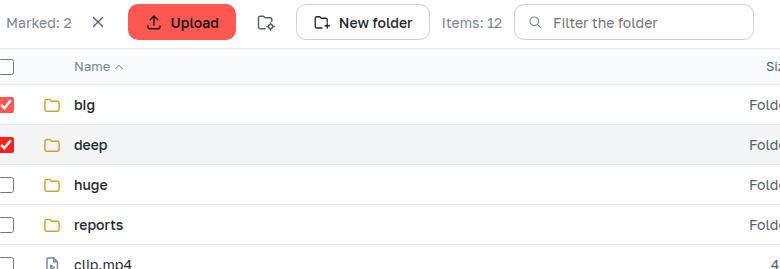
Space marks the selected row, Ctrl+A marks all, Delete opens deletion of the marked items.
The delete button appears only if there are files among the marked items: a folder is deleted differently, with its own confirmation ("Folders" section).
Deletion proceeds file by file: if some could not be deleted, the dialog remains open with the reason for each.