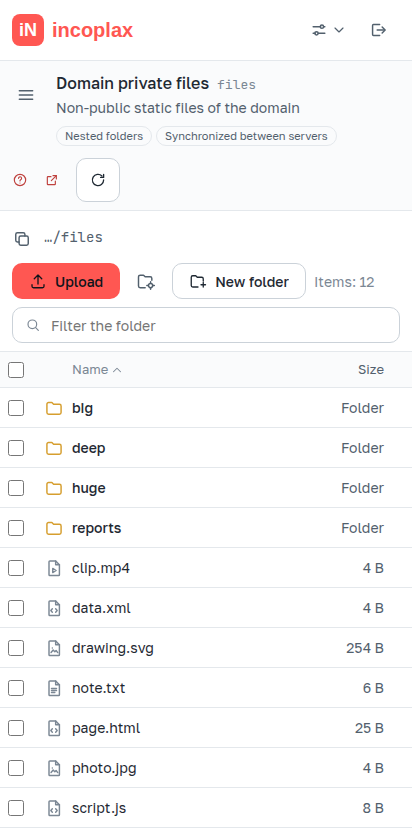
1. Sections
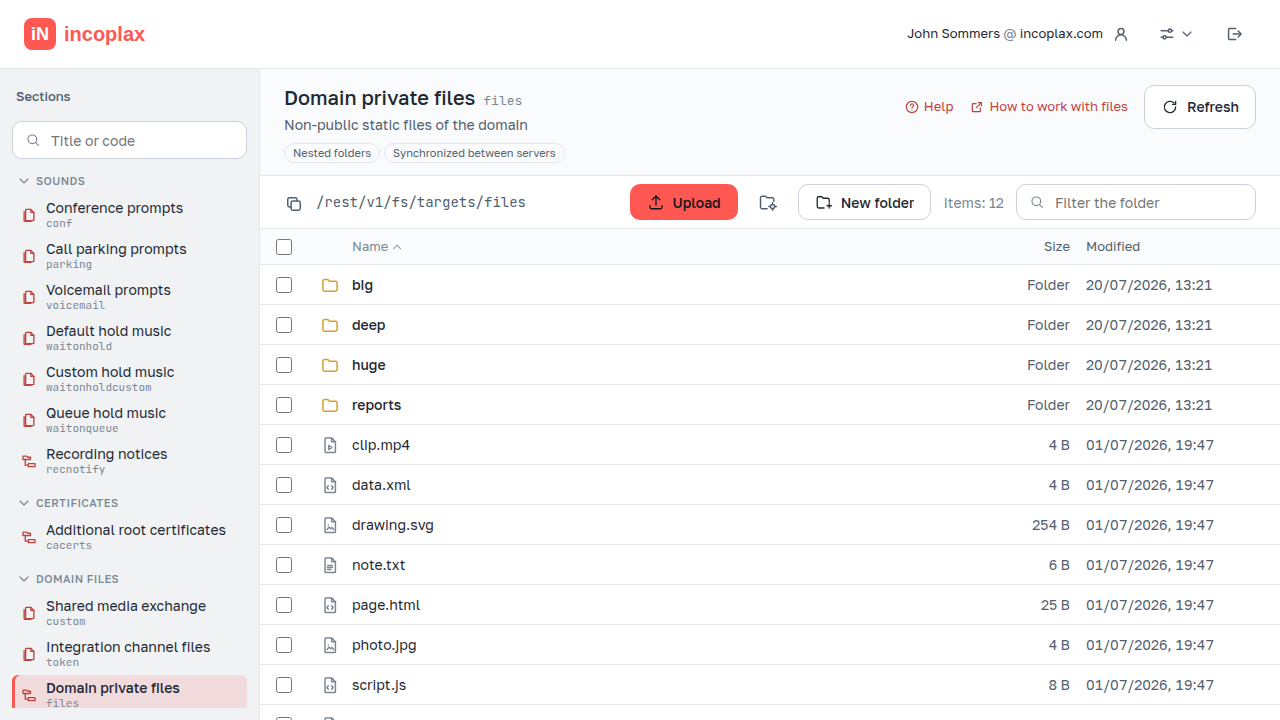
A section is a place with its own purpose: hold music, certificates, phone auto-configuration templates, files for publication. The set of sections depends on the domain and account permissions, so different administrators see different lists.
Section list
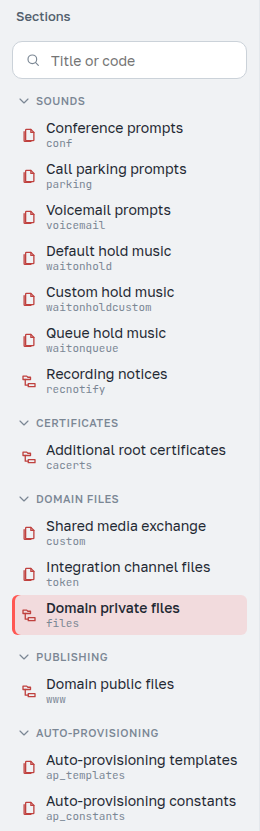
Sections are grouped by purpose. Below the name is the section code — the same name used in the address and in script paths; search looks at both name and code.
A section that appeared in a new system version is marked New: its content is visible, but only the operations possible in it are available.
What the section labels say

- Nested folders / Files only
-
A tree section allows nested folders; a flat section stores only files. Folders that are still visible in a flat section were created directly on the server disk ("Folders" section).
- Synchronized between servers
-
Files will appear on other servers automatically.
- Network storage
-
The section resides in shared storage rather than on the local server disk.
- View only in this domain
-
Section files are maintained in the master domain and only used here.
- Extra caution
-
A section where a mistake is costly. Deleting a folder with content and clearing a folder require here not only holding the button but also entering the folder name.
Only actions possible in this section and this domain are shown.
View-only sections

Some sections are maintained in the master domain, while working domains use
their content. An example is the Product layer builds section (product): build
archives are uploaded and deleted in the master domain, and from there they are available to all domains.
In a working domain such a section is useful for exactly one thing: to view the list and get the name of the required build to use as a parameter when installing the product layer. There is nothing else to do with it in file management — that is why there are no change buttons here.
Composite sections
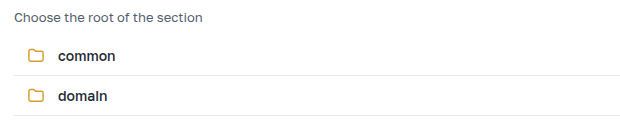
Storages (syncroot, globalshare, siteshare) consist of parts: a domain part
available only to this domain, and a shared part available to all domains. The parts are
different directories with different permissions, so the section first asks you to select a
part instead of showing them together.
The selected part becomes the first path level, and you can return to the selection by clicking the section address. If only one part is available in the domain, the section opens in it immediately, and its name is shown as a label in the header.
Section address

The row above the table shows the section address in the REST API. It is useful if you
access files not from the application but with curl or another tool under your account.
Clicking the address returns to the section root — for a composite section, to the part selection. The button on the left copies the address of the folder you are currently in.
Domains
Sections and their content belong to a domain. The domain is visible in the header next to the account name, and is changed there too — as on the application shelf. When switching, the application tries to stay in the same section; if the new domain does not have such a section, the domain files open.
A link to a file in another domain does not open silently: the application asks whether to switch to that domain.