2. First run
The chapter is about what is visible on the screen in the first minute: what the window is made of,
where everything is and what is configured once and for all.
How to open a script
The script editor opens from the platform script list: selected the script went to the editor. It does not have a separate login with a password,
it runs in the same session as other stand applications.
The address looks like this:
https://test.incoplax.com/app-scripteditor/#/test.incoplax.com/ivrscript/aa3aacd6-0177-a58b-84dd-7cd30a921f58
After the grid there are three parts: the stand domain, the type of scenario and its identifier. The type has two meanings:
ivrscript-
call service script -
svcscript::service script -
Service scripts. He has in the save menu there is an additional item Save and run.
If the address is typed incorrectly, the editor will say so - instead of a map, it will appear
line about invalid address.
What’s on the screen
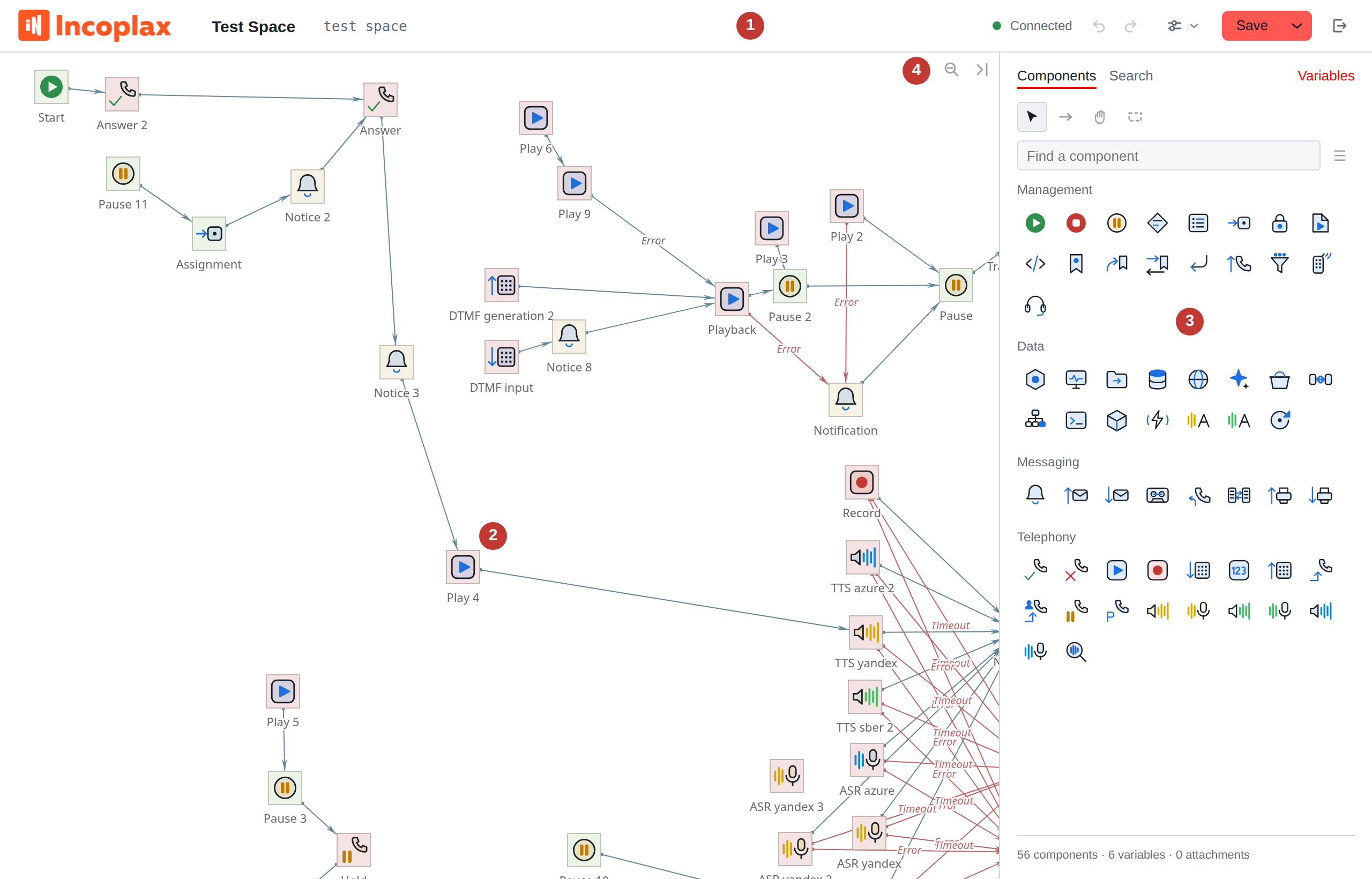
-
Header - scenario name, connection status and everything related to the scenario
Entirely: cancel, save, exit.
-
Map field - the scenario itself. Takes up almost the entire window because they are watching
  in it for the longest time.
. *Panel* - palette of components, properties of the selection and search.
-
Field corners - two buttons: overview mode and collapsing the panel. About them -
in the chapter on navigation.
The border between the field and the panel can be moved with the mouse; if you put it on it
focus with the Tab key, change the width with the ← and → arrows. The selected width is remembered.
==Hat

-
Script name. Edit right here: click and print. Field frame appears under the cursor - before this, the name looks like just a title.
-
Script code. Text link to the script, unique in the domain
for your type. Corrected in the same way - but carefully, see below.
-
Connection status. Dot and signature: Connection established,
  _Reconnecting…_, _Connection closed_.
. *Cancel and redo.* A dot appears nearby - a sign that
There are unsaved edits in the script.
-
View. Theme, mini-map, diagnostics, language. Discussed below.
-
Save and a jackdaw next to it. Under the checkbox - “Save as”, history
  versions, undoing changes and deleting the script.
. *Exit* to the main page of the stand.
|
The name and code of the script are edited by the command, like everything else: unsuccessful renaming is canceled by the same Ctrl+Z as an unsuccessful edit properties. Esc in the field returns what it was when entering it. |
Script code: why is it important
Code is the text name by which the script is referenced instead
ID. It is unique in the domain for its script type. In particular,
featurecode numbers leading to the IVR script refer specifically to the code.
|
It only makes sense to change the code of a script that is used somewhere in two cases: if another script with this code is planned to replace it, or if you at the same time correct all the links to it. Otherwise, the script will simply stop being called where it was called before - and no error will arise: the link will lead to the code, which no longer exists. |
Communication with the server
The editor maintains a constant connection with the server. It is needed for conservation
checking expressions, loading files and lists - but not for editing the script.
If the connection is lost, the caption in the header will change to Reconnection… and the editor
will begin to restore the connection itself, increasing the pause between attempts.
All this time you can continue to work: the edits will not go anywhere, they are written to a draft on your machine.
|
The only thing that really cannot be saved in the event of a break is saving. Button Save will report an error. Wait until the signature appears again Connection established, and repeat. |
A separate case is Session lost. This means the session has been deleted on the server: time has expired or the administrator has terminated it. The editor will show
a window asking you to log in again; edits remain in the draft
and they will pick it up when you return.
==Edits are not lost
Everything you changed, the editor writes to the browser memory in about a second after the last action. Closed the tab, reloaded the page,
dropped the browser - the next time you open this script a question will appear:
take a local copy or a version from the server.
This is not saving. The draft lies on your machine and is visible only to you;
Until you clicked Save, nothing changed on the server.
|
One exception to "nothing is lost" is newly downloaded audio files. They lie in the server’s temporary storage and live until the end connections. If you close a tab without saving the script, the browser will tell you will warn you - and the warning is worth reading: you will have to add files again. For more details, see the chapter on sound files. |
View: theme, language, minimap
The View button in the header collects everything that can be configured once and relates to
not to the script, but to you.
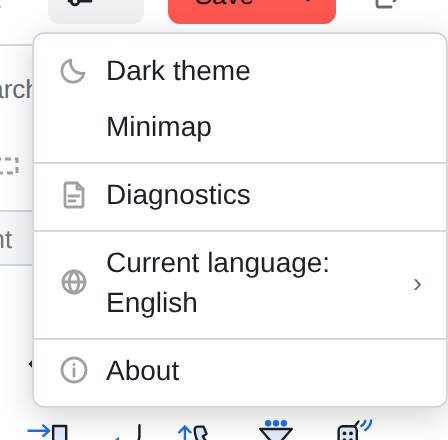
- Dark theme
-
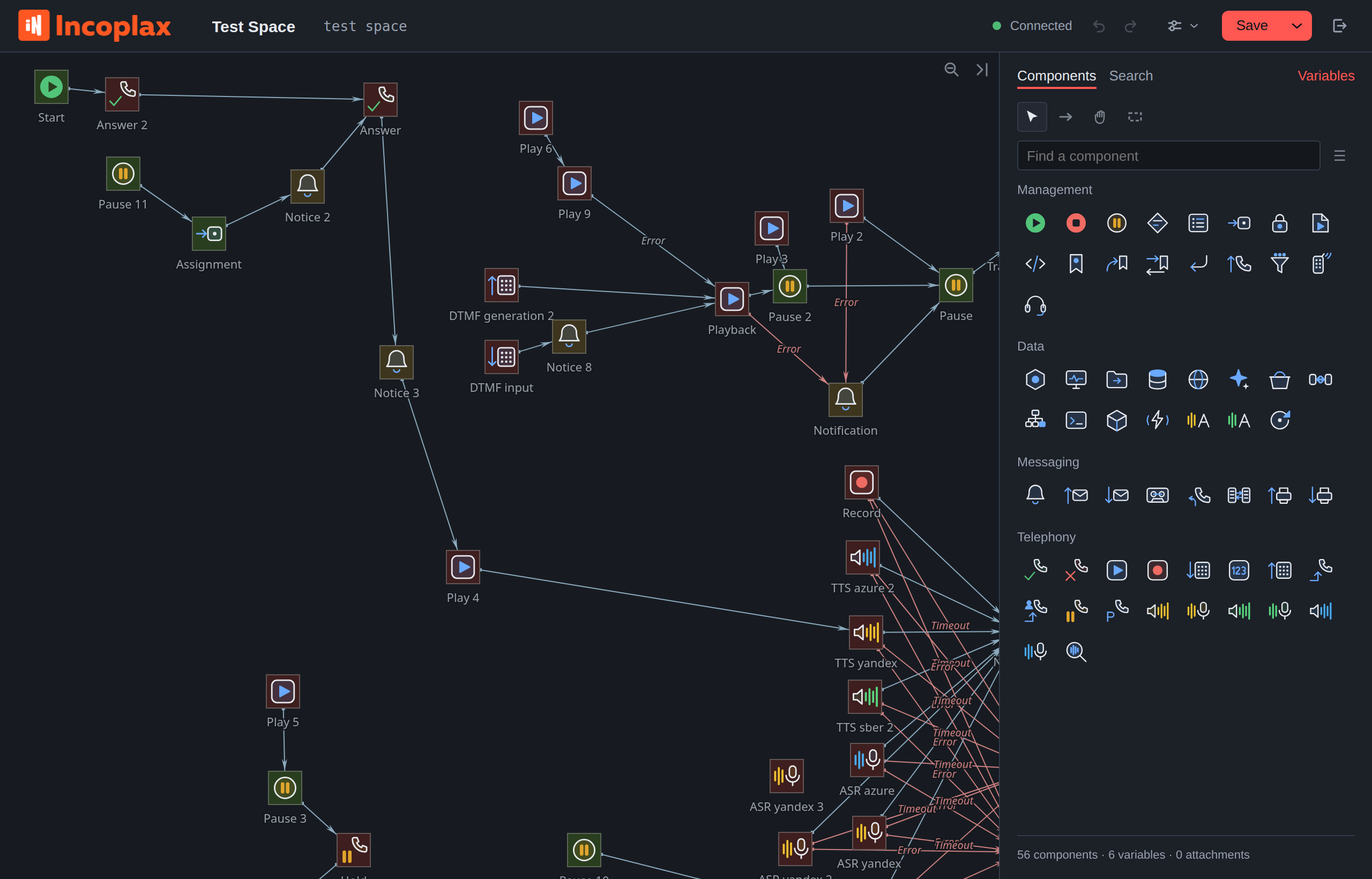
Switches the entire window, including the map. This is just the editor design:
The theme does not affect the script or its execution in any way.
- Minimap
-
Shows in the corner of the field the entire scenario and the frame of what is currently visible. It is disabled by default: it only interferes with a scenario with a dozen components.
- Diagnostics
-
Tab operation log and report for support service. Script Contents
not in the report - only events and errors.
- Language
-
Changes on the fly: the script is not reloaded and edits are not lost.
Not only the interface is switched, but also the names of the components
and properties, and they come in metadata from the server. Therefore, the completeness of the translation
and the emergence of new languages does not depend on one editor: the language must be
both in the editor and in the platform metadata.
The choice of theme, language, panel width and minimap is remembered in the browser
and refers to this machine, not the account: on another computer
the settings will be your own.
Panel on the right
The panel has three tabs.
- Components
-
Palette: everything that can be put on the map, arranged into groups.
Below is a counter: how many components, variables and attachments are in the script.
- Properties
-
Settings for the selected component. There is no tab, nothing is selected yet - there is nothing to show her.
- Search
-
Scenario search results in a list.
To the right of the tabs is the link Variables: it opens a window with the composition
script variables.
==What’s next
The next chapter is a cross-cutting example: from an empty template to a working one
greetings with a menu in two branches. This is the shortest way to understand how
the editor is completely arranged.