1. What does the script consist of?
Before changing anything, it is worth agreeing on the words. Further in the guide
they are used without explanation, but are explained here once.
The script is the path along which processing occurs. In the IVR script it follows
telephone call: the subscriber called, the script answered, something played, waited for the button to be pressed and, depending on what was pressed, went one way or
another. In the service script, an arbitrary process follows the same path -
there may not be any challenge there. The editor shows this path with a map:
steps are indicated by squares, transitions between them are indicated by arrows.
Later in the manual, for brevity, it says “call”: in service scripts read this as "processing".
|
The script and the handler are different things, and it is expensive to confuse them. A script is a description of the algorithm: what you edit in the editor and what lies on the server in one entry ( for all calls. Handler - execution instance: specific call going to this to the algorithm right now, with its own variable values and its own time ( be a hundred at the same time, and each lives in its own context. The editor only works with the script. Specific variable values The challenge is not visible in it and cannot be. More details: Script types, |
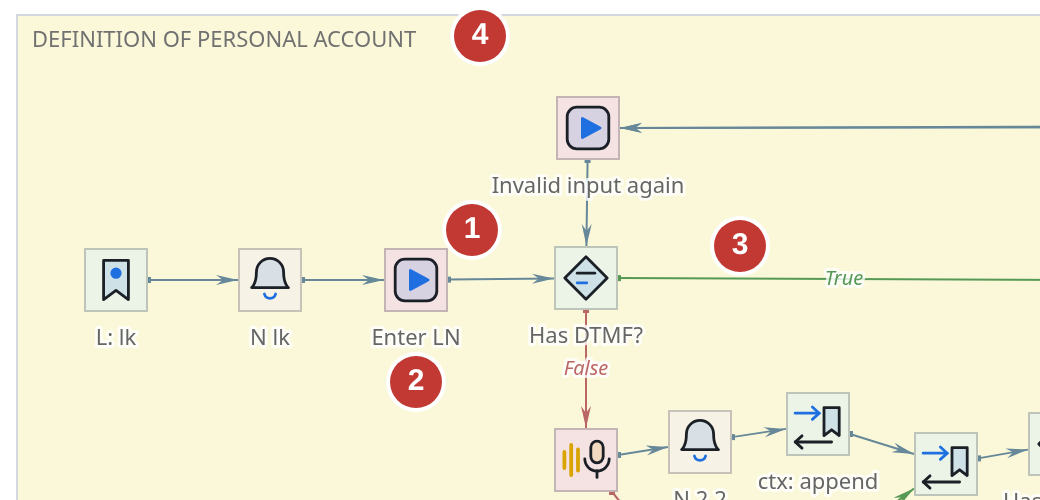
-
Component—one step of the script. Always a 32×32 square with a type icon.
-
Component name—signature under the square. It is set by the administrator.
-
Communication - where the control goes after this step.
-
Region is a frame around a group of components with a caption in the corner.
Also, the script has variables - they are not visible on the map because are not tied to a place, and live in a separate window.
==Component
The component is what the call does: answer, play the recording, wait for the number,
ask the base, transfer to the operator. Each component belongs to a type,
and the type determines everything: what the component does and what settings it has.
The types of components and their properties are described in the reference book:
The management does not retell them.
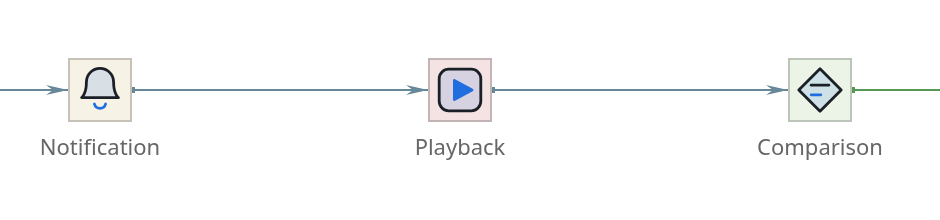
The appearance of the square reveals three things.
- Icon
-
Component type. The icons are drawn in one set, and similar types look similar: everything that controls calling has a tube in its sign; there is an arrow at sending and receiving
full height on the left.
- Backing color
-
The group to which the type belongs. The groups are the same as in the tab
Components: greenish - control, gray - working with data, sand - messaging, pink - telephony.
- Signature below
-
The name given by the administrator. The name is arbitrary, people need it, not the server:
it is used to search for a component, it is referred to in conversation, it is visible in the list
transitions. A long name on the map is cut off by an ellipsis.
|
The name should be given to speak. "Play 4" won’t tell you anything through month, no colleague; "Greetings after hours" will say. |
The component settings - its properties - live not on the map, but in the tab
Properties panels on the right. About them below.
Connections
A connection is an arrow from one component to another. She answers the question
“what next”: having completed the step, the call goes through the connection to the next component.
Most components have several outcomes, and each has its own meaning. Comparison
gives “True” and “False”, entering a number - success and time expiration, querying the database -
answer and error. Therefore, there can be several connections from one square, and nearby Each one is signed under what conditions it will work.
The color of the line tells you what it’s about:
| Color | What does it mean |
|---|---|
Grey-blue |
Normal course of events |
Green |
Condition met: “True”, menu branch, successful response |
Reddish |
Something went wrong: “False”, error, time expired |
This is a hint, not a rule: the meaning is determined by the signature of the arrow, the color only helps
take a look at the map. There are a lot of red lines on the map - this is normal for anyone
the step must provide for an unsuccessful outcome.
Region
Region - a rectangular frame with a signature. It doesn’t do anything with the call: it’s
a mark on the map with which the administrator separates one semantic part of the script
from another.
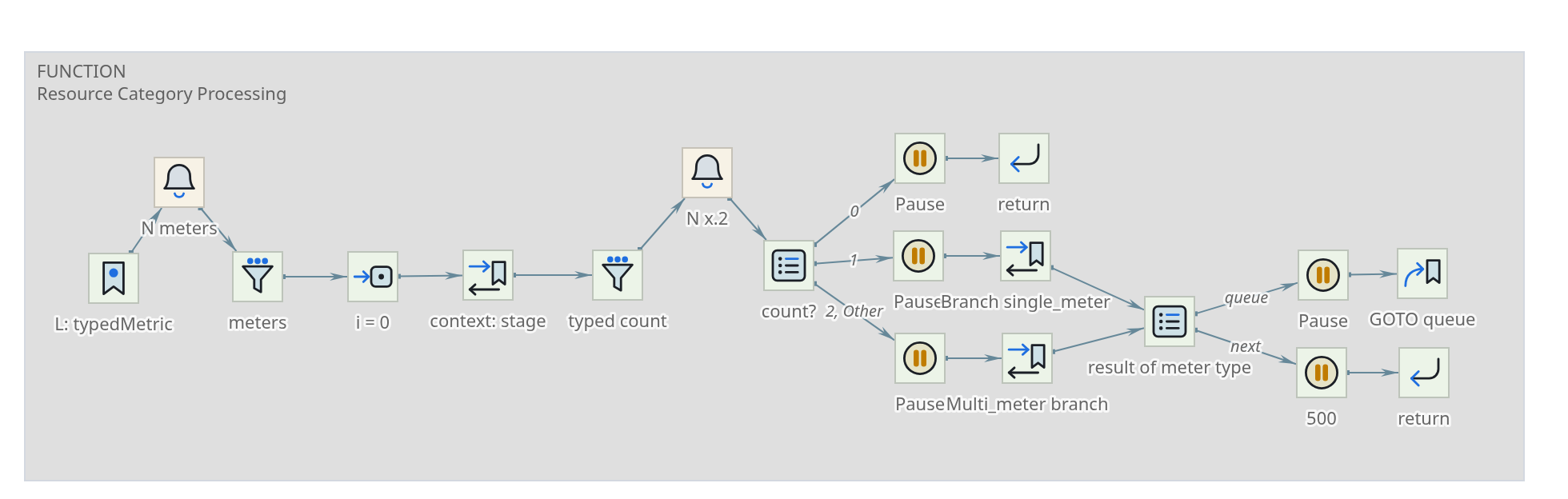
The region does two things. The first one is visually groups: it’s immediately obvious
where one semantic part ends and another begins. Second, and no less
important, - carries a multi-line signature. They write in it that in six months
no one will remember: why this section is, what it checks, why it was done
exactly like that. Region is primarily a comment left visible on the map.
At the same time, the region moves along with all its contents: move the whole piece
the script is completed in one motion.
A region is selected by clicking on the frame or by clicking on its signature - by clicking on the content
clicking will select the component, not the area. Shift and click on the region cycles through the bars: region itself → region with content → content only →
nothing; For details, see chapter about regions.
Variables
A variable is a named place where the script puts something and where it comes from later
takes: the number dialed by the subscriber, the base response, the attempt counter.
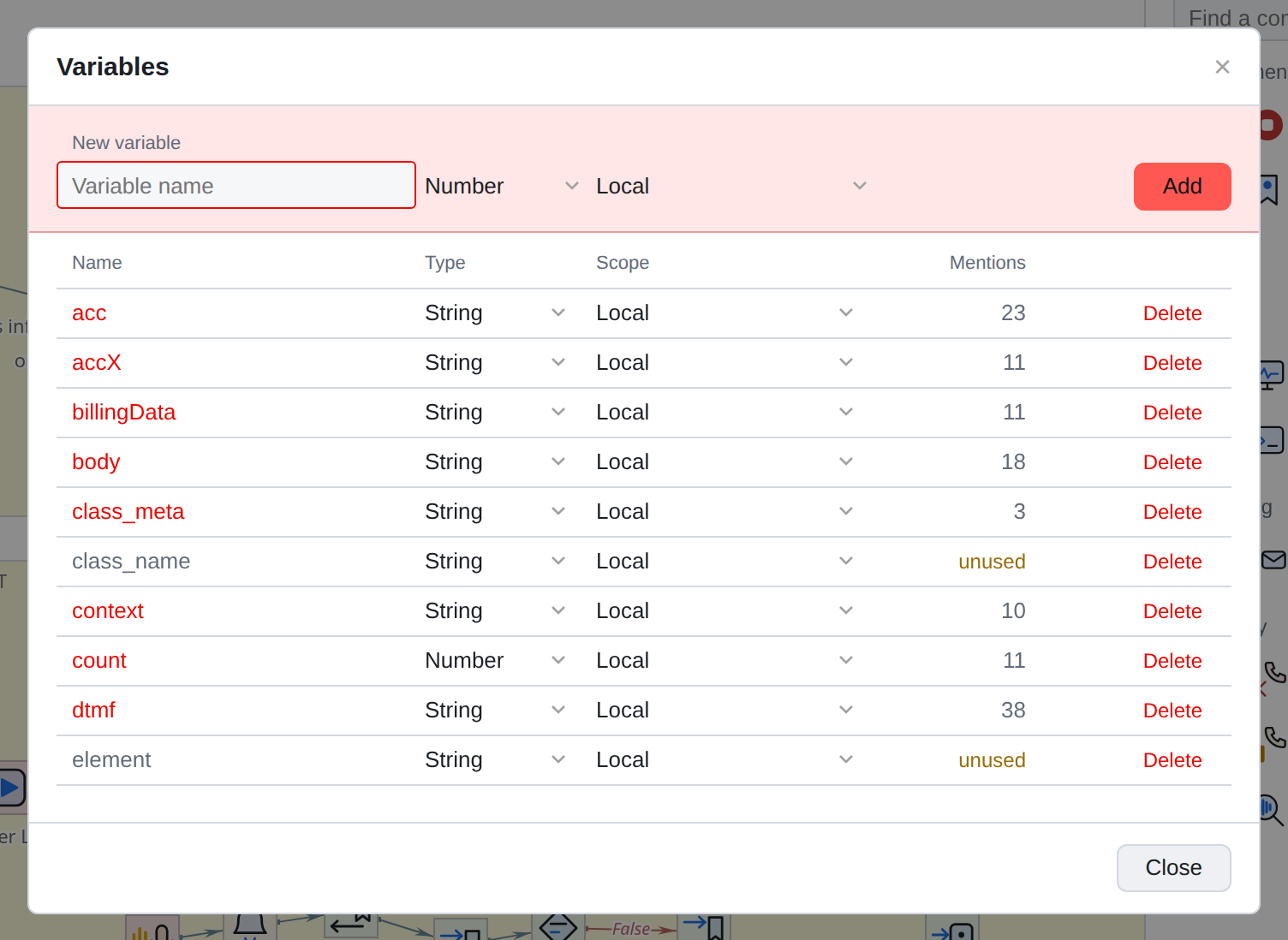
There are no variables on the map: they are not tied to the step and belong entirely to the script
(Variable).
Their composition is edited in a separate window - the Variables button above the panel right. You can also see how many times each is mentioned: the variable whose
zero mentions, most likely left over from previous edits.
Properties: parsing the “Menu”
Properties are what a component is configured with. Each type has its own, and
it is impossible to sort them all out at once. But it is enough to disassemble one component carefully: the rest are arranged the same way.
Let’s take Menu - a component that branches the call according to the value of its
argument (Menu Component).
He himself does not ask the subscriber anything: he collects the pressed button
someone before him - "DTMF Input", "Playback" with customized characters interrupts or other telephony component - and puts it in a variable.
Menu already compares its value with its list.
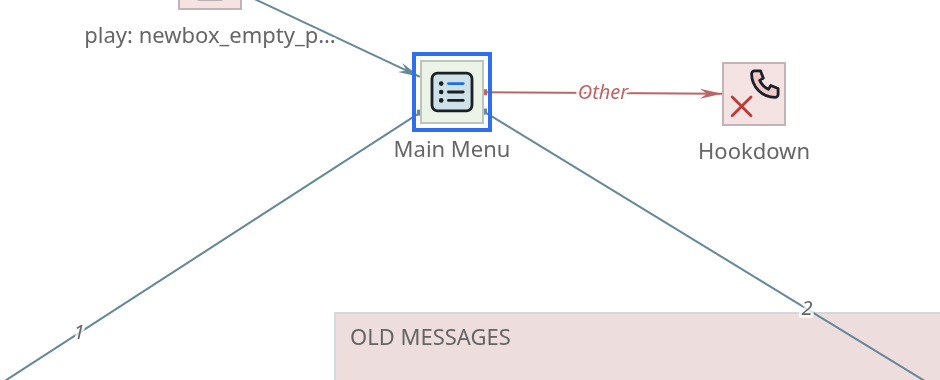
Three arrows go from the square. Two are signed with the numbers 1 and 2 - these are branches
for pressed buttons. The third one is signed “Other” - the call will go away if
pressed something else or pressed nothing.
Now do the same in the panel on the right.
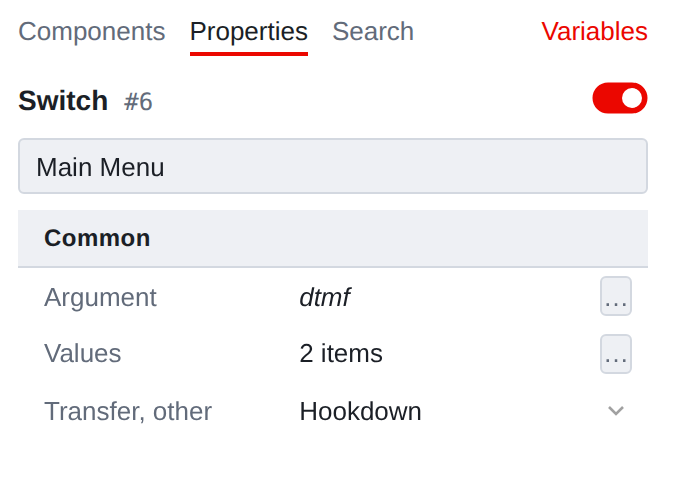
The panel is read from top to bottom.
- Menu Heading #6
-
Component type and number in the script. The number is assigned upon creation
and does not change; according to it, the component differs from the same neighboring one.
- Switch to the right of the title
-
The component is enabled. Disabled remains on the map and in the scenario, but the call via
it won’t work - it’s convenient when a section needs to be temporarily excluded without disassembling it.
- Field named
-
The same name that is visible on the map under the square. Here it is corrected.
- Line General
-
Title of the property group. More complex components have several groups.
- Argument -
dtmf -
What exactly to compare. Here the value of the variable
dtmfis taken - into it
previous step and put the button pressed
not a constant, but a reference to a variable. The … button on the right opens a window where
you can choose another source: constant, another variable, expression
or template.
- Values - 2 points
-
Table “pressed this much - let’s go there.” Two points - the same branches
1and2
on the map. The … button opens the entire table.
- Transition, other -
Hookdown -
Where to go if not a single item suits you. This is the “Other” branch on the map.
The drop-down list lists the components of the script.
Pay attention to the main thing: the map and the panel are two views of the same thing.
The branches in the Values table are arrows on the map. By changing the table you change
arrows; dragging an arrow on the map will change the table.
What the same thing looks like in the saved script
It is not necessary for the administrator to know this, but sometimes it is useful - for example, when dealing with support. Extra fields have been removed from the example.
{
  "oId": 6,
  "oType": 105,
  "name": "Main Menu",
  "arg": {
    "argType": 2,
    "varType": 2,
    "variable": "cbffcae4-bd3c-4bd0-b8db-0ba06f9e7c4a"
  },
  "values": {
    "items": [
      {
        "value": {
          "argType": 1,
          "varType": 2,
          "value": "1"
        },
        "transfer": 73
      },
      {
        "value": {
          "argType": 1,
          "varType": 2,
          "value": "2"
        },
        "transfer": 69
      }
    ]
  },
  "transferFalse": 91
}
arg is the same Argument: argType: 2 means “variable value”,
and variable - which one exactly. values.items — branch table: clicked 1 —
transition to component 73. transferFalse - “Other” branch.
|
Not all properties are always visible. Some fields appear only under certain conditions value of the adjacent field: there is no need to ask about the length of the pause if the pause off. If a familiar field “disappears,” this is almost certainly the case. More details in the chapter about the inspector. |
==What’s next
The concepts introduced here are enough to get you through the rest of the chapters:
-
component — scenario step, square on the map;
-
connection - arrow, the answer to the question “what’s next”;
-
region - frame with signature, map marking for a person;
-
variable - a named place for a value, lives outside the map;
-
properties—component settings, edited in the panel on the right.
| ◀ Script Editor | 2. First launch ▶ |
|---|