6. Create and delete
Components are taken from the palette, copied from another location, or deleted.
The chapter is about all three methods and what happens to connections when they are deleted.
Palette
The Components tab shows everything that can be put on the card this type of scenario. The components are divided into groups - Management,
Working with data, Messaging, Telephony - in that order
in which the server sends them.
If the type is known by name, there is no need to search with your eyes: the field above the list
selects suitable ones, leaving only those groups in which something was found.
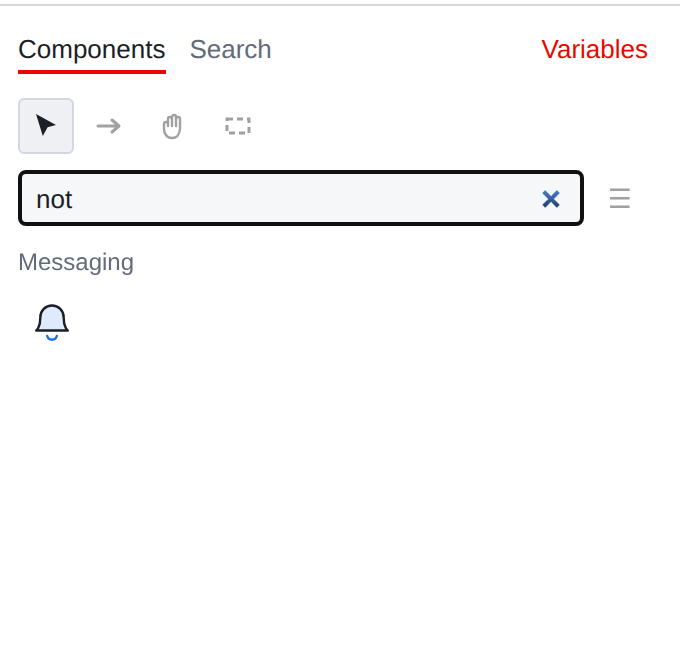
The button to the right of the field switches the list between icons and lines
with names. The icons are more compact, the names are clearer, until the types are learned.
At the bottom of the palette there is a counter: how many components and variables are in the script and investments.
Four tools
There are four buttons above the search field. They define what the mouse does on the map.

- Pointer
-
normal mode: selection, lasso, drag. He’s the same
returns itself after any other action.
- Pull link
-
same as Ctrl and pull, only without the key.
Convenient when you need to make a lot of connections in a row.
- The hand
-
moves the field, not highlighting anything.
- Region
-
draws a region. About the regions - the next chapter.
Install component
There are two ways, and they are equal.
Two clicks. Clicking on a type in the palette “charges” the cursor, the next click
According to the map, places the component in this place. The supplied one is immediately highlighted, and the panel shows its properties - you can configure it without removing your hands.
Drag and drop. Click on the icon in the palette and, without releasing the button,
put it on the map. The icon flies behind the cursor; the component appears there,
where the button was released. Changed your mind halfway - kbd: [Esc] or letting go by
cards: nothing will be placed.
This method is more convenient when you need to sketch several components at once:
placed by dragging is not selected, the panel remains on the palette,
and you don’t have to go back for the next type.
In both cases, the cursor points to the middle of the component, and then
placement discharges itself: a charged cursor remaining unnoticed, will add extra components.
The new component gets:
-
default name - type name. If such a name is already taken, contact it
number is added: Notification 2, Notification 3. Number is searched
  on existing names, so deleting does not cause a collision;
* *number* (`#3` in the panel header) - one more than the largest
in the script. Released numbers are not reused;
-
default property values from metadata.
|
The name should be changed immediately. "Play 7" won’t say anything in a month neither you nor your colleague, and searching by such a name is useless. |
Copy
Components are copied in whole chunks - Ctrl+C, Ctrl+X,
Ctrl+V or the same context menu items.
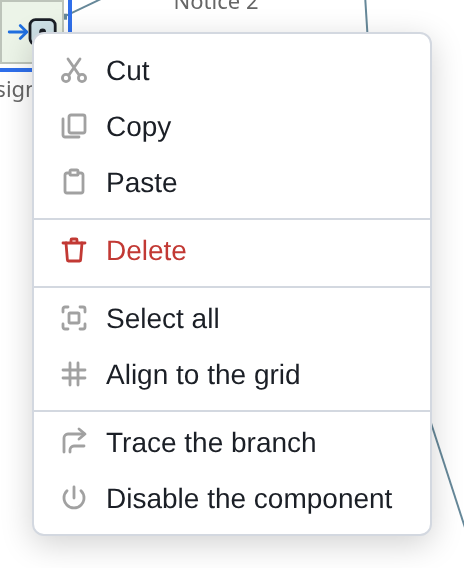
You can also insert it into another script - just open it in the next
tab. When pasting the editor:
-
assigns new numbers to inserted components and rewrites mutual ones
links so that connections within the piece are preserved;
-
connections outward of the piece are cut off: the component to which they led in the new no place;
-
carries the variables referenced by the piece, matching them
*by name*. There is already a variable with the same name - it is being used
the new one will not start;
-
transfers attachments referenced by copied components.
|
Right-clicking on an unselected component first selects it, and only then opens the menu. Otherwise, “Delete” would not refer to what shows the cursor. |
Delete
Delete deletes everything selected; the Delete menu item does the same. There is no confirmation - it is not needed, because the deletion is canceled
Ctrl+Z along with all the consequences.
There are consequences, and they are worth knowing.
- Connections to the remote component are cleared
-
If the component being deleted was referenced by someone, its transition property becomes empty. Leave a link to a non-existent editor component
cannot, and even more so, silently lead the call “to nowhere.” The property is simple
will be empty, and this will be visible in the panel.
Cancel returns both the component and the references:
Ctrl+Z after deletion restores the component in its original place in the script and returns the cleared transitions.
- Variables are not deleted
-
Removing the component that used the variable, the variable itself
doesn’t touch. It will remain on the list with a decreased mention count.
Disable instead of deleting
The component can not be deleted, but can be turned off using the toggle switch in the panel header
or the menu item Disable component. He will remain on the map and in the scenario,
but the call will not go through it.
It’s so convenient to temporarily exclude a section: disassemble and put back together
there is no need, and comparing versions will show exactly one changed line.
| ◀ 5. Selection and movement | 7. Connections ▶ |
|---|