7. Connections
Communication answers the question “what’s next.” Most outcome components
several, and the chapter is about how to ask them and how to read what is drawn.
Reach out
Press Ctrl, hold down the left button on the source component, bring cursor to target, release. While the cursor is on the way, a dotted line follows it
arrow, and the component under the cursor is surrounded by a frame - you can see where you will end up.
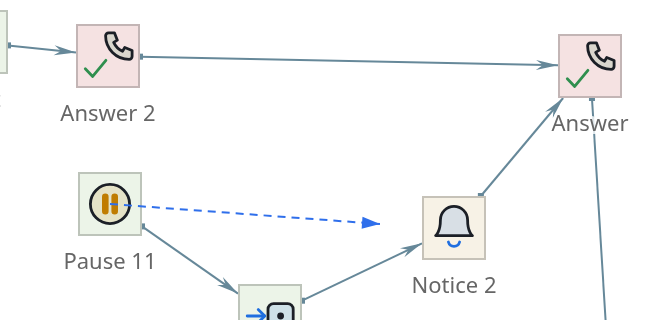
If you need to make a lot of connections in a row, a tool is more convenient instead of a key Stretch connection in the palette: it does the same thing, but Ctrl hold
no need.
Release the arrow in the void means clearing the transition property. This
the only way to remove a connection: there is no separate “remove connection” command,
because the connection is not an object, but a property value.
Which branch is pulled by Ctrl
A component has several transitions, but only one extension. Ctrl pulls
The main branch is the one along which the call goes during the normal course of events.
The remaining branches are specified in two ways:
- By number
-
hold down the number from 1 to 9 and drag it out - that branch will go away to which this figure is assigned. For “Comparison”, for example, 1 - “True”,
2 - “Lies.” If the type does not have a branch with such a number, the connection will not last
at all: the editor will not invent a thread for you.
- From the panel
-
each branch has its own line in properties and the target is selected
there is a list in it.
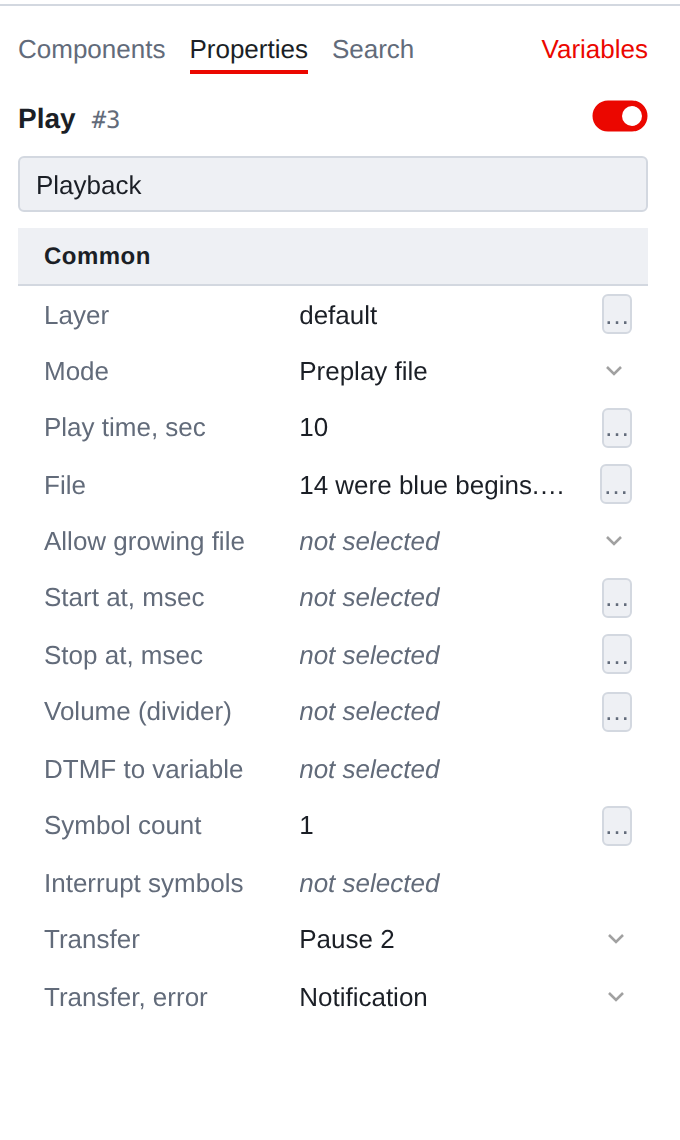
Transition lines are recognized by their names: Transition - main branch,
Transition, error - what to do if the step fails. At the "Menu" and similar
types of branches live not in rows, but in a table - this is discussed in the chapter about the menu and translations.
How to read what is drawn
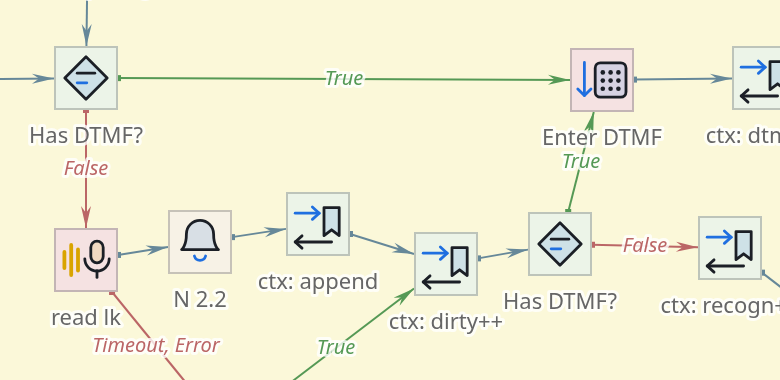
Next to each arrow there is a sign under what condition it will work: True, False, Error, Time, number of the button pressed. Signature -
this is the point of the thread.
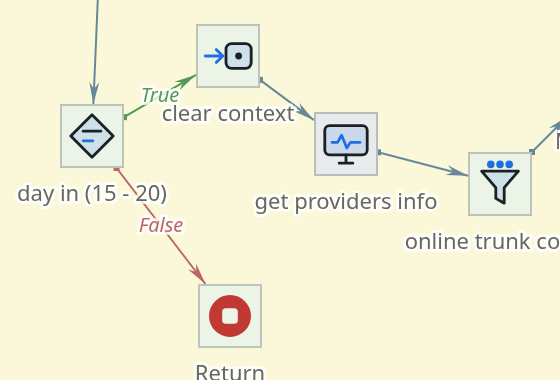
Color helps the map to be visible to the eye.
| Color | What does it mean |
|---|---|
Grey-blue |
Normal course of events |
Green |
Condition met: “True”, menu branch, successful response |
Reddish |
Something went wrong: “False”, error, time expired |
There are a lot of red lines on the map, and this is normal: any step should have an unsuccessful outcome is envisaged.
Empty thread: when it’s dangerous
An empty branch means different things to different types, and it’s worth knowing the difference.
- For some components, the server substitutes the main branch itself
-
if
Playback or Notification is not filled in Transition, error, call if there is an error, it will go through the usual Transition - the work will continue.
- In branching types, each arrow is important in itself
-
in Comparison
and Menu there is nothing to substitute: the branch on which it went is not filled
control,” the script ends there.
|
Hence the rule: Comparison should lead somewhere both branches, Menu has all the table items and Transition, etc.. Empty thread here - this is a dangling call, not “proceed as usual.” |
|
Color is a hint, not a rule. What exactly is considered the main move is specified in the metadata for each type, and for branching types both are considered basic branches: both “Truth” and “Lies” are equally legal. The meaning is always written signature - it’s worth looking at. |
Signatures that didn’t fit
If there is not enough space between the components, the arrow label is not drawn: it
It would fit on the neighboring ones and interfere with reading the map itself. The thread at the same time
has not gone away - it can be seen in the properties and in the trace.
Spreading the components wider is not cosmetic, but a way to see the scenario.
Follow connections
With the mouse, connections are not only drawn, but also read: Ctrl+→ translates the selection
to the target of outgoing communication, Ctrl+← – to the source of incoming communication,
Ctrl+↓ and Ctrl+↑ iterate over neighboring branches. More details - in the chapter on navigation.
Where the call will come from this point entirely, and not just one step, shows
trace—key T or menu item Trace branch.