5. Select and move
Everything that is done with a component is done with a dedicated component:
its properties are corrected, it is deleted, it is copied. Therefore, the selection is
the first thing you should master for sure.
One component
Clicking on a square selects it alone, deselecting the previous selection. Around
square, a frame appears, and the panel on the right switches to the tab
Properties.
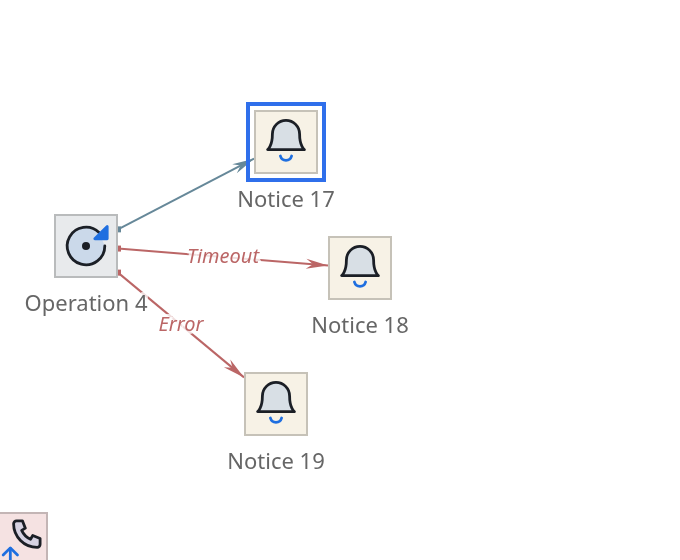
Clicking on an empty space removes the selection. Esc does the same.
Multiple components
There are two ways to recruit a group.
- Shift and click
-
adds a component to the selection or removes it from it.
This is how they recruit several scattered around the map.
Frame lasso: dragging the mouse over an empty space draws a dotted frame.
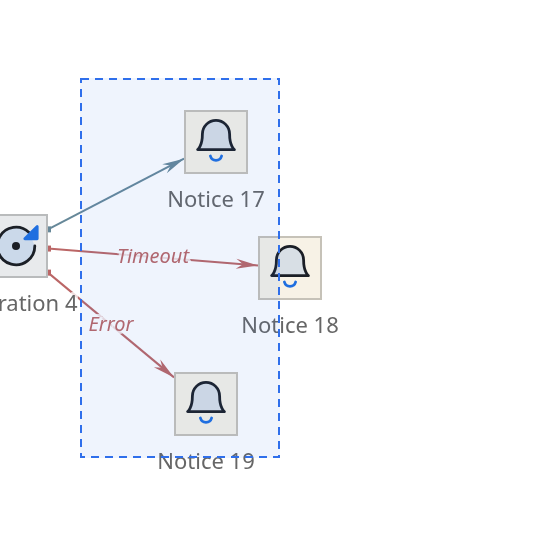
The lasso picks up everything the frame touches - not necessarily a component
lie inside entirely. This is done intentionally: tracing exactly along the edge is tedious,
and it’s easy to miss by a pixel.
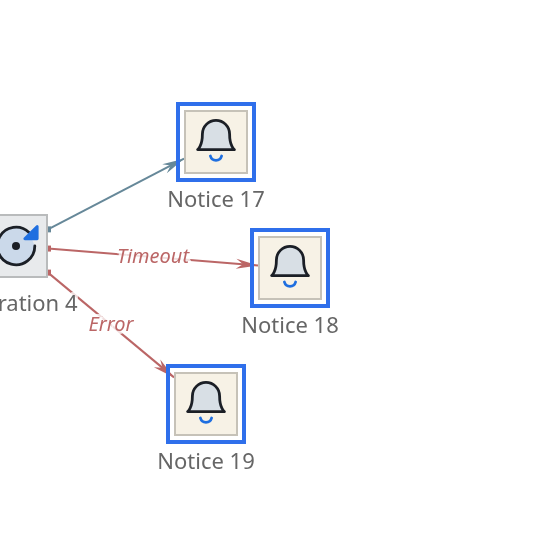
Ctrl+A selects everything in the script.
|
Modifiers in the editor are separated by roles and do not mix:
Therefore, there is no need to remember “what will happen if you press both”: everyone answers for yours. |
What the panel shows during group selection
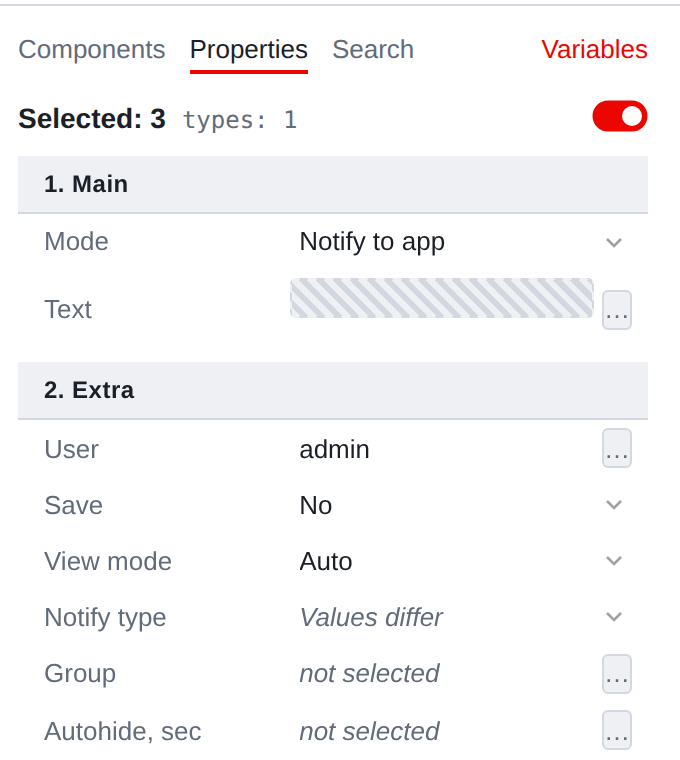
The header shows how many objects are selected and how many different types there are among them.
Below are the properties that all selected ones have. Editing a line like this
changes the value for the entire group at once with one command: it is also canceled entirely, in one kbd: [Ctrl+Z].
The value is shown in different ways:
-
the same for everyone - as usual;
-
miscellaneous - with the inscription Values vary, and for text fields with shading.
  Until you introduce something new, different meanings remain different;
* if there are no common properties at all, the panel will tell you about it.
The toggle switch in the header turns the entire group on and off at once.
Region selection
A region is also an object, and clicking on it selects it. But more often it is necessary
not this, but “the region along with everything that is on it,” or vice versa. That’s why Shift and clicking on a region works in cycles: each next click
transfers the selection to a new state.
| Beat | What’s highlighted |
|---|---|
1 |
the region itself |
2 |
region and all components entirely within its boundaries |
3 |
components only - the region has been removed from the selection |
4 |
nothing |
The third step is the working one: it is needed to move the contents without dragging
frame behind you.
A lasso frame with regions works differently: if the frame fits entirely within a region, the region itself is not included in the selection - it is chosen
components on the area, not the area. Once the frame crosses the border -
the region is included in the selection along with the linked content.
==Move
The selection is dragged with the mouse. You can drag any selected component - the whole group will go.
Without a modifier, everything moves per pixel. With kbd held: [Alt] -
on an invisible grid with a step of 8 px:
-
the upper left corner of the selection is brought to the grid, the remaining components
  maintain their position relative to him - the group does not fall apart
by nodes;
-
the grid is never drawn, it is not visible;
-
Alt and the arrow moves the selection one grid step. Without Alt
the arrows do not move the components, but the field is scrolling;
-
Alt+G aligns everything selected to the grid without moving anything essentially.
If you move the cursor to the edge of the screen while dragging, the field will move
itself - you can drag the component through half the script without releasing the button. What if
bring to the left or top edge of the field, the editor will expand the script:
the coordinates in it are non-negative, and the place on the left is taken by shifting the entire the rest.
|
One drag - one undo step, no matter how many components you move and no matter how long they lead. The boundary is set by the gesture itself: press the button - start, let go - the end. |
Region stretching
The region moves beyond the middle, and stretches beyond the edge. Cursor
tells you what will happen: at the border it changes to a double-sided arrow.
Components lying on the region remain in place when stretched - they change
only frame.
With Alt the edges of the region also line up on the grid.
| ◀ 4. Map navigation | 6. Creation and deletion ▶ |
|---|