4. Map navigation
As long as there are six components in the script, the question “where am I” does not arise. On combat
scenarios with four hundred components, it appears immediately, and this chapter is about
how to answer it.
Field is larger than screen
The map is a large field in which you look through a window the size of
from screen. The components are where they were put; empty space around them
it is necessary that the script can be laid out spaciously, and not sculpt everything
in the corner.
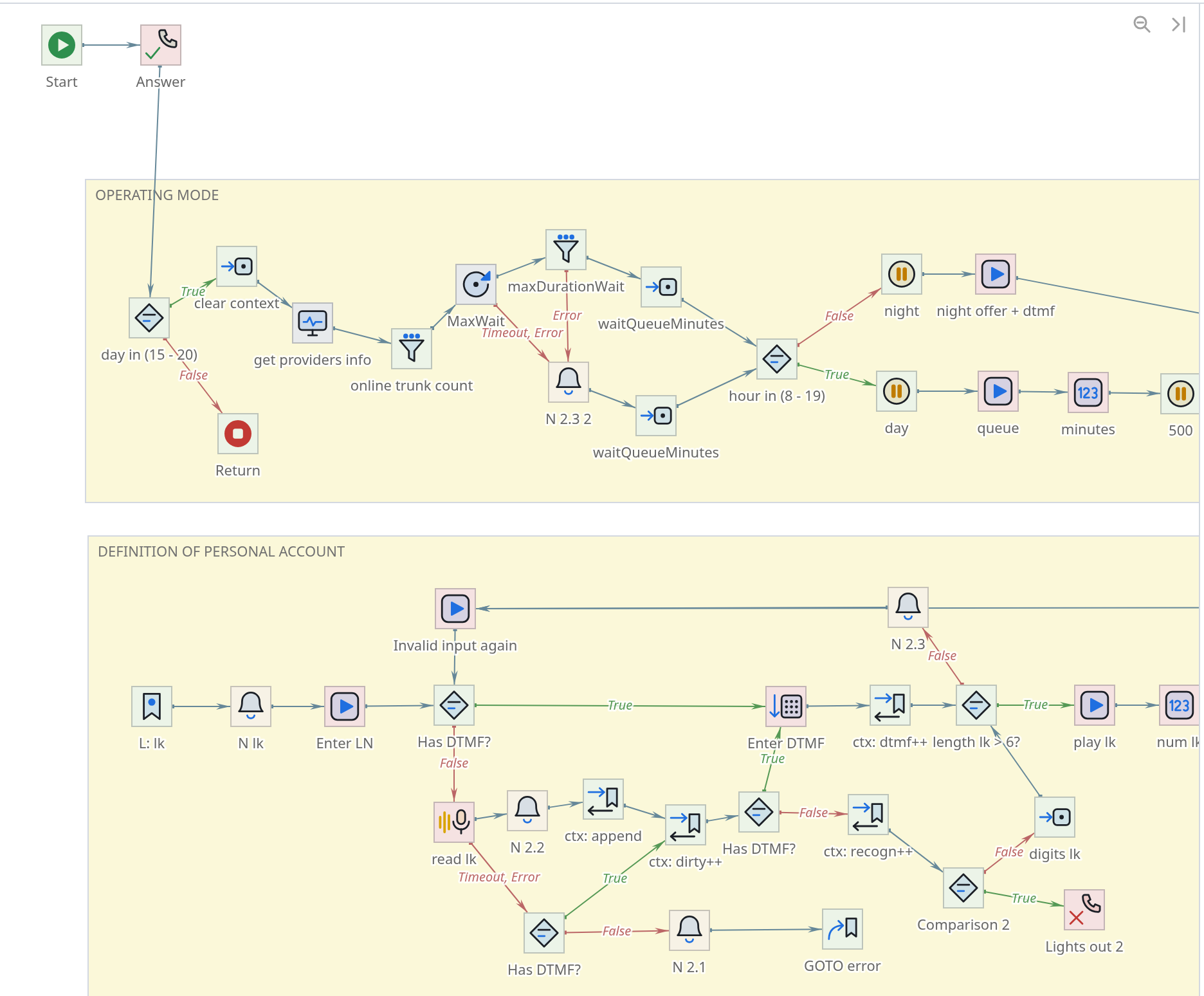
Below and to the right are several dozen more such screens. Further in the chapter -
ways to get to the right one, from the roughest to the most precise.
You can move around the field like you would on any long page:
| Action | What does |
|---|---|
Mouse wheel |
Scroll up and down |
Shift + wheel |
Scroll left and right |
Scroll bars |
Same with the mouse |
← → ↑ ↓ |
Scrolling from the keyboard |
The Hand tool in the palette |
Dragging a field with the mouse |
|
The arrows scroll the field only while the focus is on the field itself. If you are in front of with this they typed something in the panel on the right, the arrows will go to the input field - click on an empty area of the map and they will become scrollable again. There is one more subtlety with arrows: Alt and the arrow does not scroll field, but moves selected components along the grid. These are different actions with similar keys, and it’s unpleasant to confuse them. |
Two scales, and no intermediate ones
The editor has exactly two viewing modes, and they can be switched with one button.

On the left is a magnifying glass, also known as View Mode. On the right - collapsing the panel, about it
below.
- Working scale
-
One hundred percent. The component is a 32 × 32 square, the signatures are readable, everything that
done with the mouse, done in this mode.
- Review Mode
-
The entire script is included on the screen entirely. The scale is selected by itself - what
it will work out, that’s how it will be.
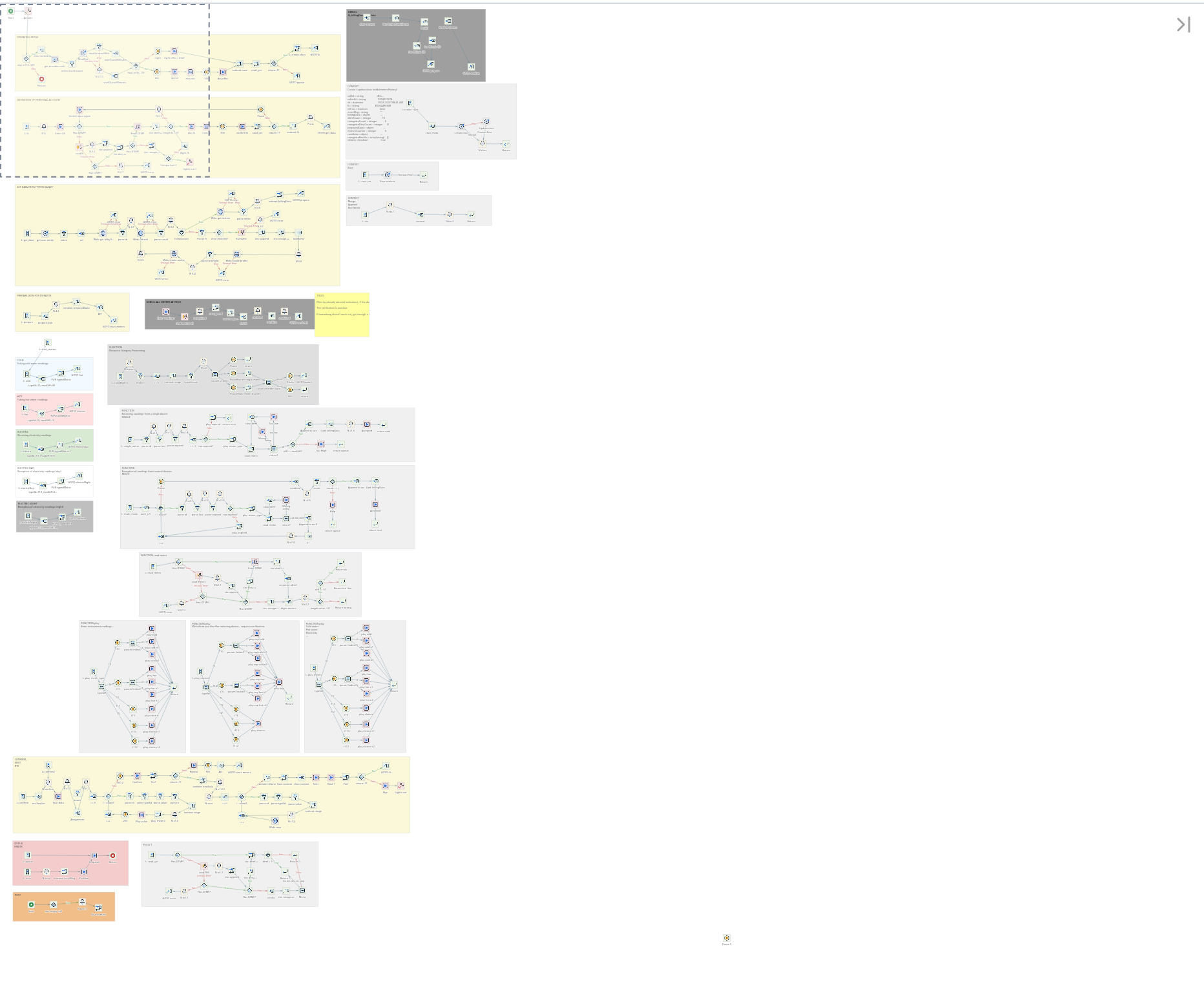
There are no intermediate steps intentionally. Scale "approximately sixty
percent" is not needed by anyone: either you work with components and you need
real size, or you are looking for the desired area with your eyes and you need to see everything.
In review mode, a dotted frame is visible - what was on the screen before pressing
magnifying glasses. There is no need to drag it: click anywhere returns to the working scale so that the click point is in the middle of the screen. This is it
the main way to jump to the far corner of the scenario: magnifying glass, click on the desired one
place - you are there.
Esc also exits the view, but returns you to where you entered it from.
Mini map
If you have to jump often, you don’t have to press the magnifying glass every time: turn on
mini-map - it will show the same thing, but constantly.
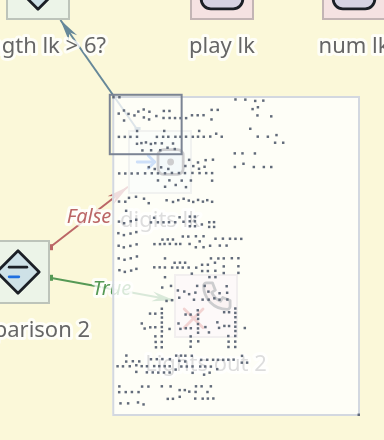
The dots are the components, the frame is what is currently visible on the screen. Turns on the mini-map is in the View menu and is remembered; by default it is disabled,
because in a normal scenario it only takes up a corner.
Walk through connections with keyboard
The most accurate way to move is not by coordinates, but by meaning: along
connections.
| Combination | Where does it go? |
|---|---|
Ctrl+→ |
To the component where the outgoing connection leads |
Ctrl+← |
To the component where the incoming communication came from |
Ctrl+↓ and Ctrl+↑ |
Between adjacent branches of the same component |
The box follows the selection itself: if the next component is beyond the edge of the screen, the card will reach him. Nothing is selected - Ctrl+→ will start from the first
script component.
So you can go through the entire branch without ever touching the mouse, and this
noticeably faster than carrying a card with your hands.
Find and be there
Once the name is known, there is no need to search with your eyes. Ctrl+F opens
search line: type part of the name, kbd: [Enter] - and the editor will take you there
map to the found component and select it. Repeat Enter
moves on to the next match.
Search can do more - search by property values, show all finds list, select them at once. This is discussed in a separate chapter; it’s important here
that search is also the fastest way to navigate.
Remove panel
In a wide scenario, the panel on the right sometimes gets in the way: it takes up a quarter
windows, but it’s not always needed.
The right of the two buttons in the corner of the field collapses the panel, and the map takes up
the whole window.
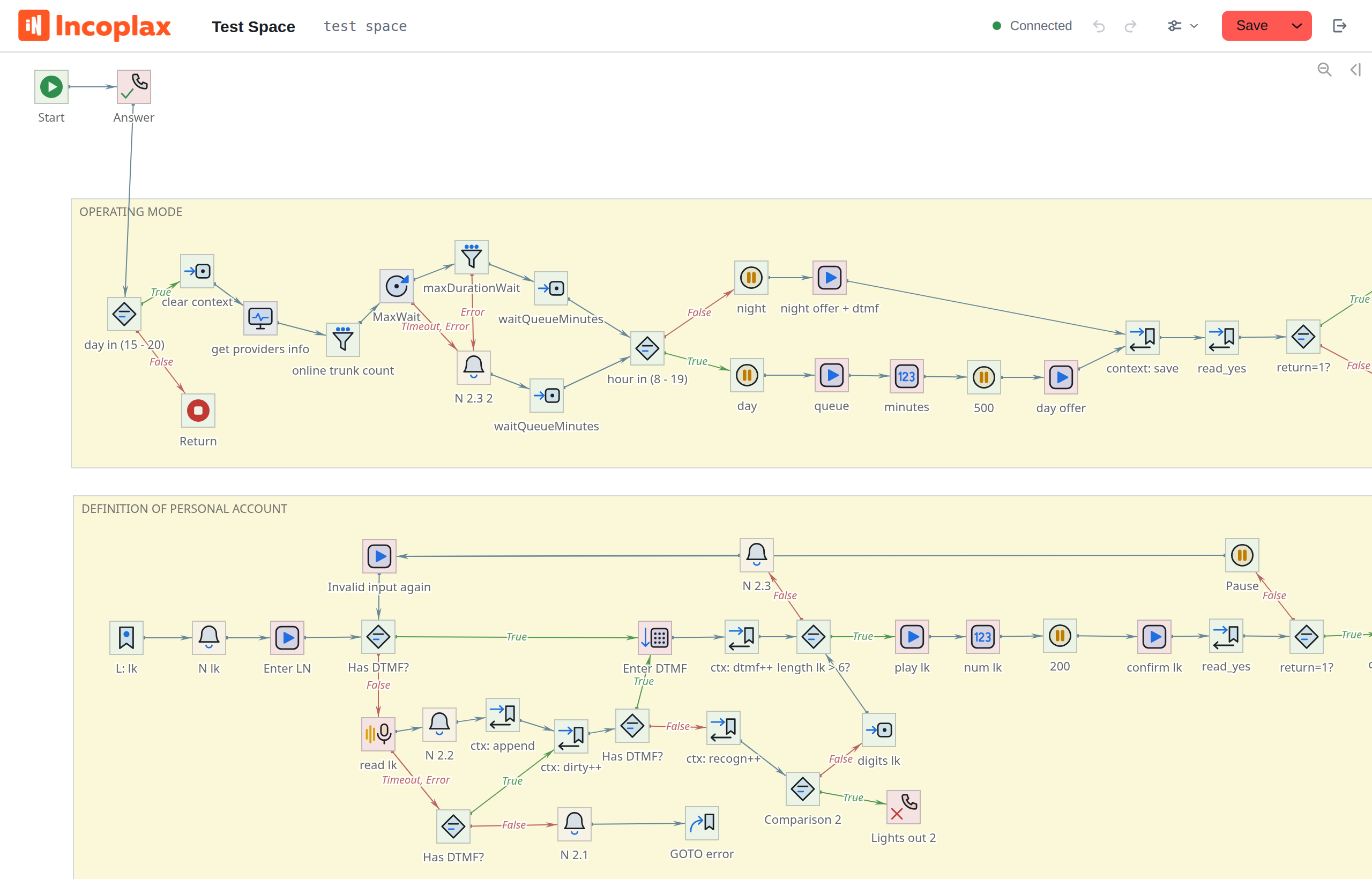
The triangle on the button shows where the panel will go: to the right - it will collapse, to the left - it will return. The width of the panel, if you don’t want to collapse it entirely,
you can simply reduce it by pulling it outside the border.
Things to make a habit of
-
Regions. Frame with a caption around the semantic part of the script -
  the cheapest investment in map clarity. In review mode they are the ones
and read: the region signatures are visible, the component names are no longer visible.
-
Talking names. “Checking working hours” is found by searching,
"Comparison 12" - no.
-
Marks instead of long links. The arrow across half the map does not help
  understand the script. About labels, transitions and calling a branch with return -
in the chapter on large scenarios.