12. Simple fields
There are fourteen types of fields in the editor. Five of them are designed simply
and sort it out here; the rest - variables, arguments, tables, files -
received their chapter.
Text
The simplest field: a line that is edited directly in the table. Click,
set, Enter. Nothing except what was entered happens to it -
the editor does not substitute or calculate.
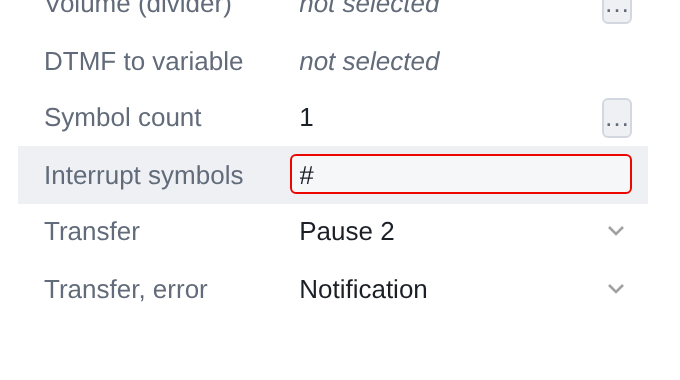
There are few such fields: name, description and several service lines like
interrupt characters. Everything where variables or calculations are needed is done
argument - the next chapter is about it.
List of metadata
The checkbox on the right indicates a choice from a ready-made set. Recruitment is coming from the server along with the type description and does not depend on the script: it is always
the same for this property.
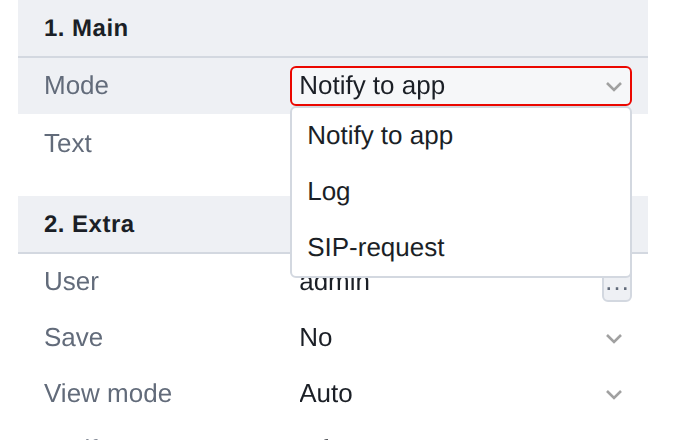
These are the fields that most often control the visibility of the others: Mode, Type, Yes/No. When changing them, be prepared for the panel to rearrange itself.
Directory from the server
Externally the same, but the set is not hardwired into metadata, but is asked
the server at the time of opening: a list of scripts, queues, users.
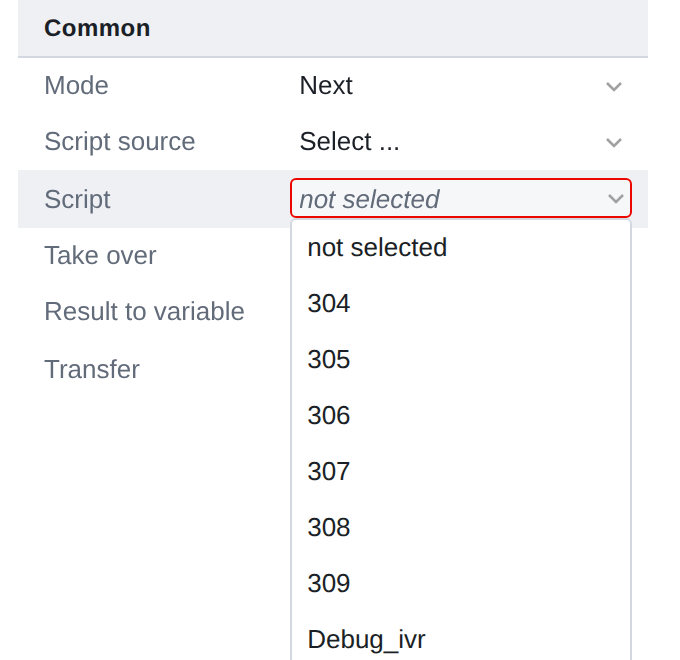
Such a list does not arrive instantly - while it is traveling, the field will honestly say
"loading…" If the server does not respond, the Retry button will appear:
the editor will not pretend that the list is empty.
What you receive is remembered for the duration of the session: the second time the same field will open straightaway.
==Color
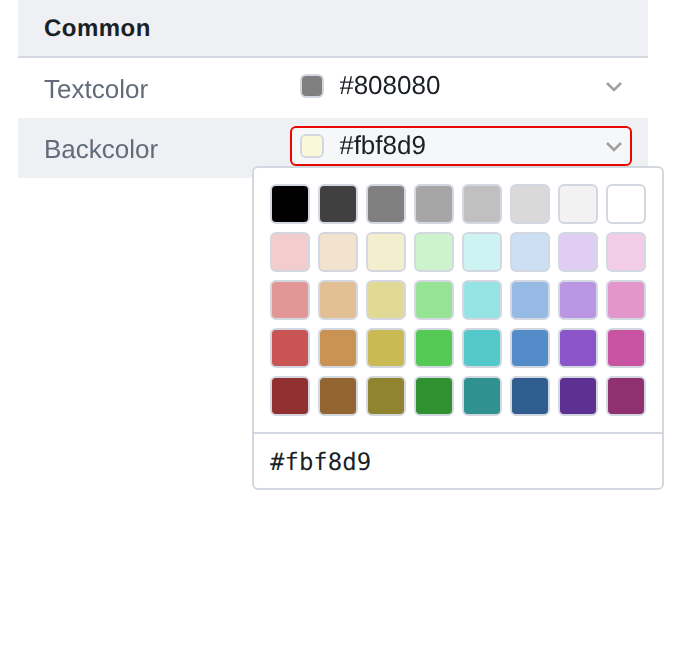
The color is selected from the palette or specified by a code in the field below it - the usual one
#rrggbb, as in the layout. To the left of the value is a square with the color itself:
it shows what is selected without reading the code.
The palette is deliberately small. Five rows from black to color cover
everything you need to mark up your map, and the full-color picker tempts
choose shades that cannot be repeated later.
Multiline text
There is only one such field - the text of the region - and it does not live as a table row,
and the area under it, in the same place as the description. There is … near the area:
the same value is corrected in a separate window.
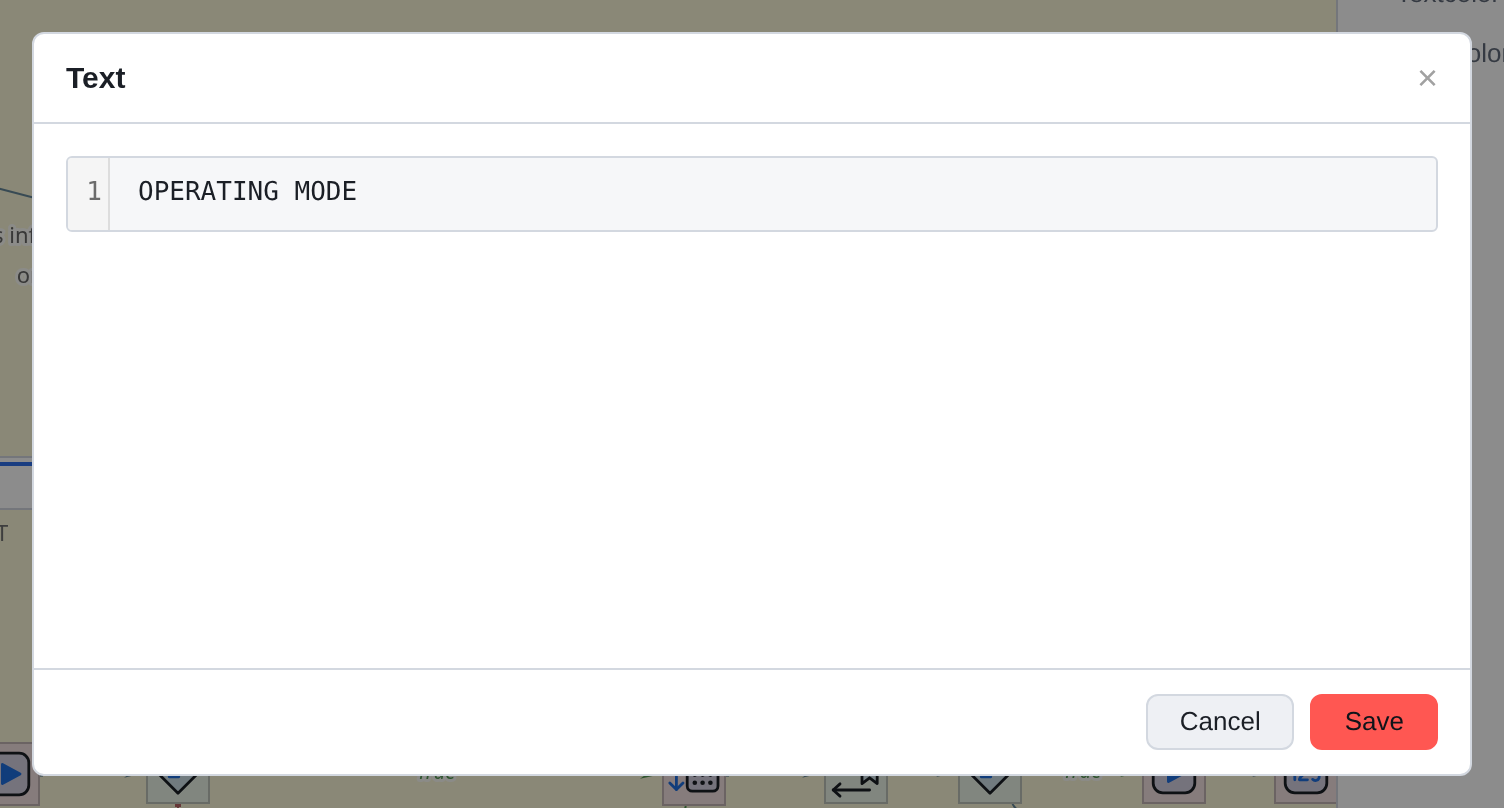
The window has line numbering and search - it is designed for text that
three lines of the panel are unreadable.
|
In multiline fields, Enter breaks the line rather than ending the input. Finish - Shift+Enter or Esc; in the description area - Ctrl+Enter. |
What do all fields have in common?
-
Editing is applied immediately; the field does not have a separate button.
-
Esc returns the value that was before editing began.
-
An empty value is shown in italics - not selected. It’s not zero
  and not an empty string, but “nothing”; in the script such a property
won't hit at all.
-
If several components are selected and their values are different,
the field shows _Values vary_, and the text field shows shading.