13. Variables
A variable is a named place where the script puts something and where it comes from later
takes. It is not on the map: it is not tied to a step and belongs to the scenario
entirely.
Variables window
The composition of variables is edited in a separate window - link Variables
to the right of the panel tabs.
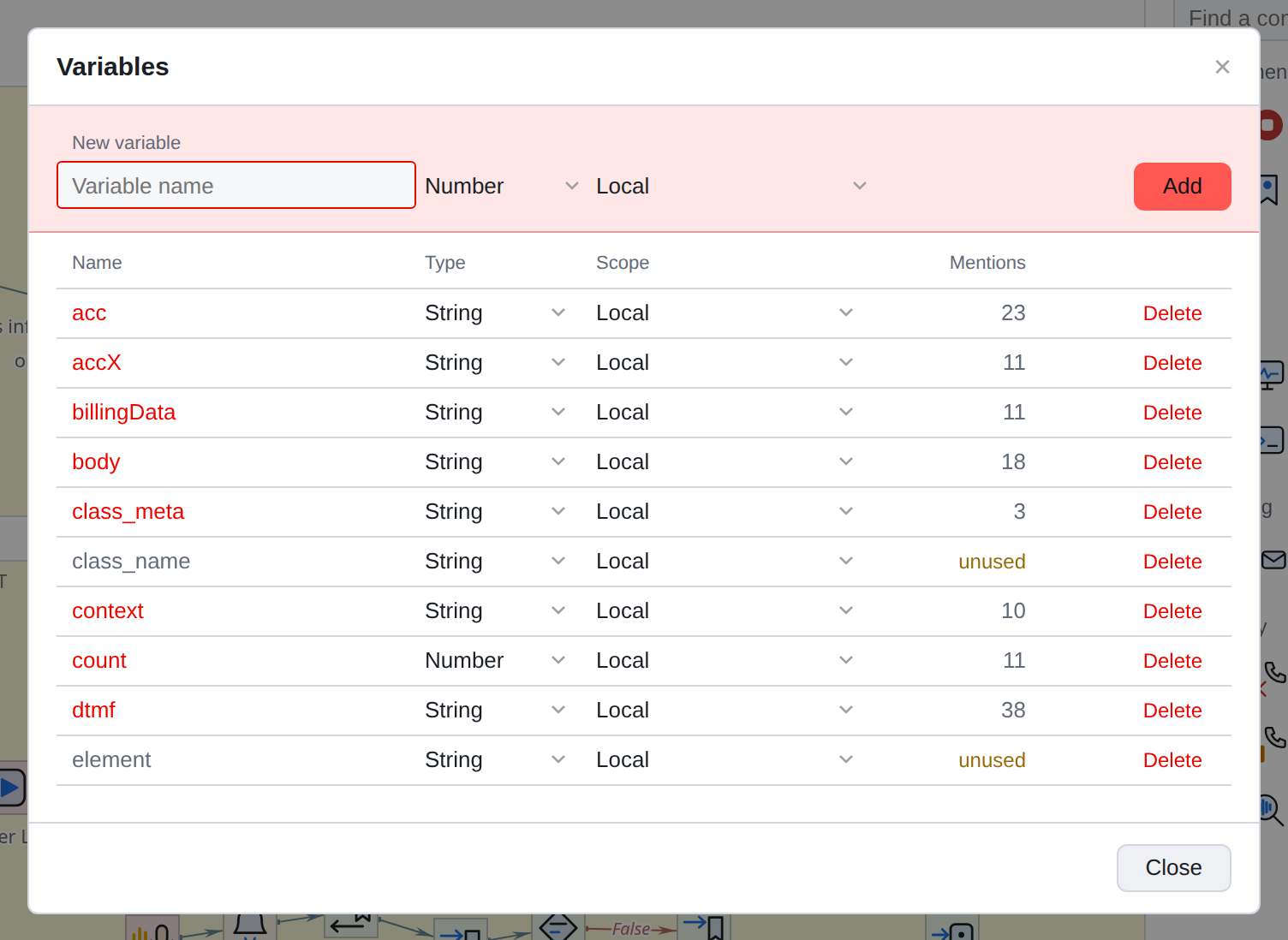
The top bar is creation: name, type, scope, Add button. Below - a list of what already exists.
The names are unique and case sensitive: acc and Acc are two different
variables. An attempt to start a second acc will not work, and the window will tell you why.
Type and scope
Type: String, Number or Date/Time.
+ String is the default type and is not a compromise. It is the most general: any
another type from a string is converted, but the reverse is not always true. Nothing
Bad things won’t happen if all script variables are strings.
+
Arithmetic works here: adding two strings containing numbers,
gives a numerical operation. There is a separate function for gluing text -
concat. So the choice of type does not interfere with counting; it interferes with just the opposite:
the account number included in the number will lose the leading zero, and DTMF may
turn out to be an asterisk that doesn’t fit into the number.
- Scope
-
where the variable lives. Local - only within this call,
and this is the right choice in the vast majority of cases. The rest of the scopes experience the challenge and are more visible; they are used consciously and rarely.
More details - Variable.
The type and scope can be changed later - right in the list line.
How many times a variable is mentioned
The Mentions column is the most useful thing in this window.
She does not count “how many times a name appears”, but how many properties
the variable is actually referenced: variable fields, arguments
in the “variable” mode, occurrences of the name in expressions and templates.
Zero mentions are signed separately - not used. Such a variable
almost certainly left over from previous edits: it can be deleted, nothing without breaking.
|
Before creating a new variable, you should look at this list.
work without it. |
Renaming
Clicking on the name (or the pencil next to it) starts editing. Enter a new name,
Enter - and the editor will show where the old name occurs.
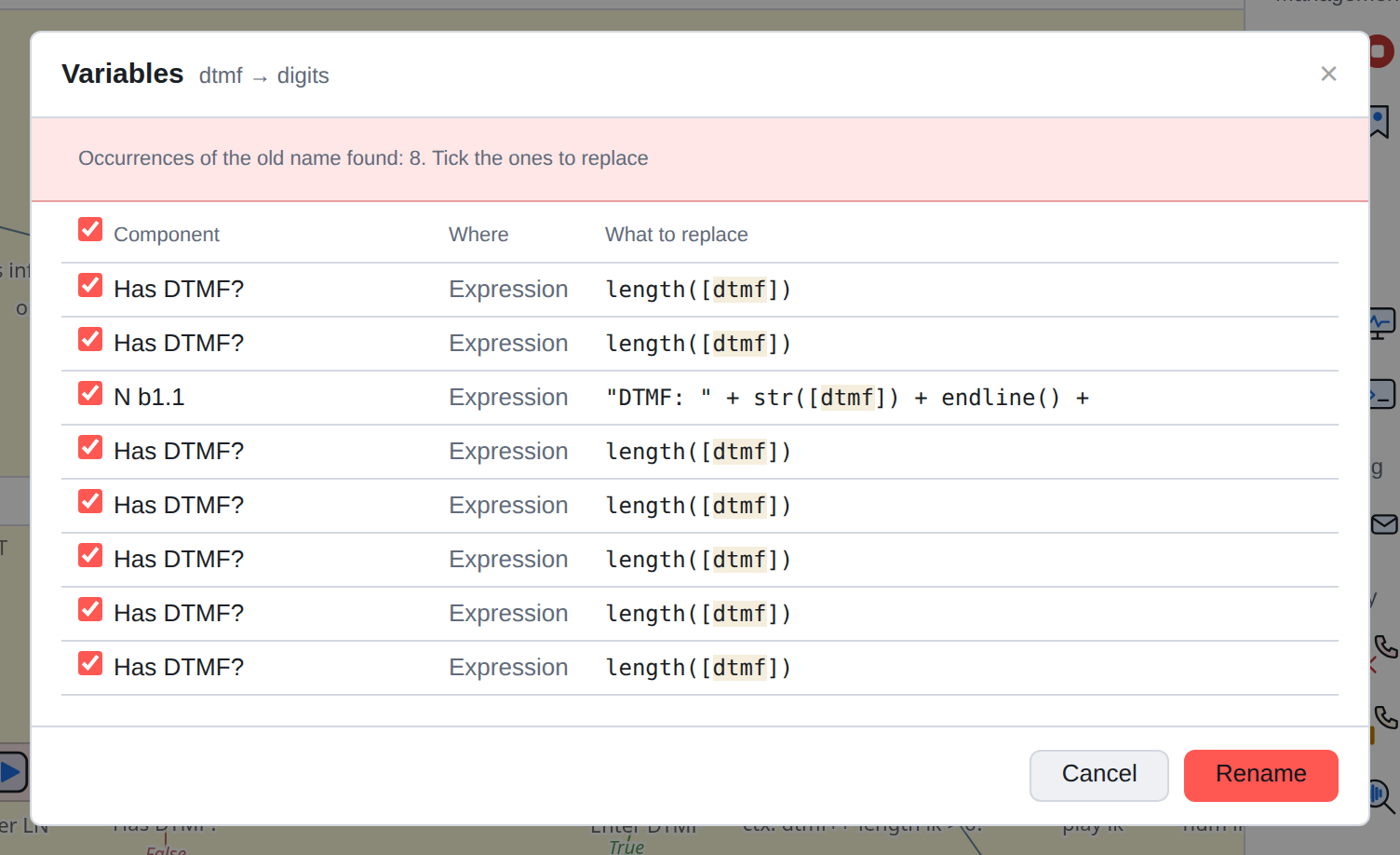
For each occurrence you can see in which component it was found, in which field and what the line itself looks like. Check marks indicate what to replace.
There is no automatic replacement without confirmation - and for good reason: name
a variable may appear in text that has nothing to do with it.
For example, in a message to a subscriber.
Fields referencing a variable by identifier, renaming They worry themselves: the name is not stored there, and they do not need confirmation.
The list shows only text entries - expressions and patterns.
All renaming is one undo step: Ctrl+Z will return the name,
and all replaced occurrences at once.
Delete
Delete button in the line. Before deleting, the editor will tell you how much
properties of the variable are referenced, and will warn that they will be cleared.
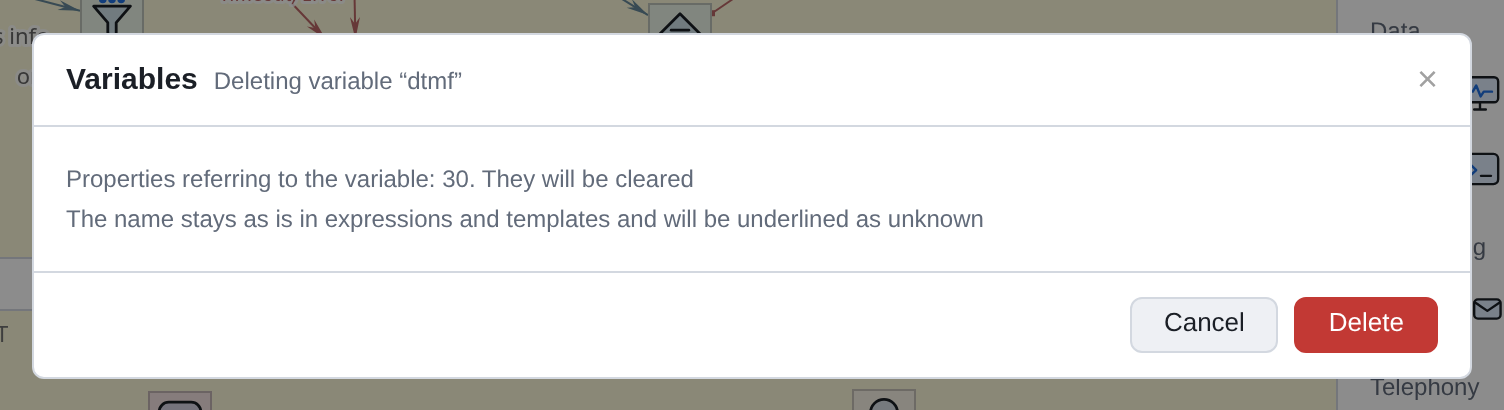
What’s happening:
-
variable fields and arguments in the “variable” mode that pointed to it,
become empty;
-
name in expressions and templates remains as is - editor does not edit
someone else's text. It will be highlighted as unknown;
-
the variable itself disappears from the list.
All this can be canceled with one kbd: [Ctrl+Z].
Selecting a variable in a property
Fields of the “variable” type - Result to variable, Buffer for DTMF,
Cause of error in variable - selected from a list directly in the line.
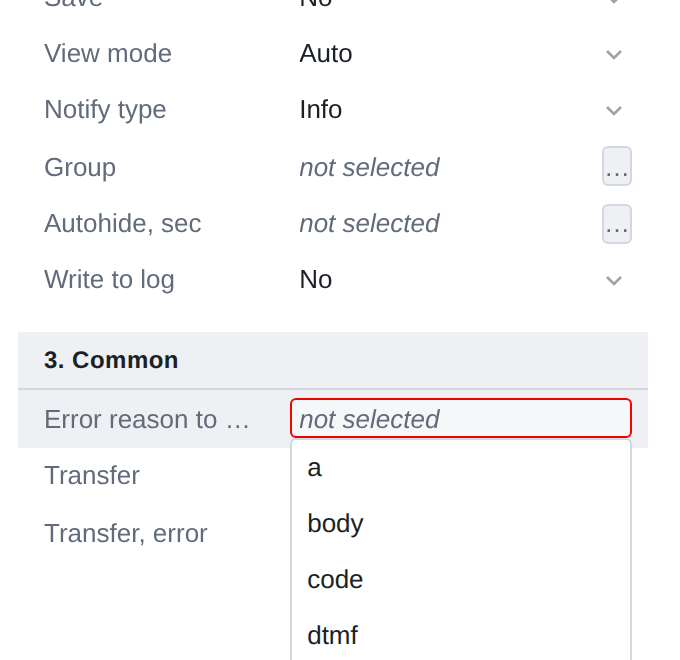
Start typing - the list will select the ones that suit you. If there is no such name yet,
instead of the list, the item Create “name” will appear: it opens a window
variables with the name already substituted. So the variable starts there,
where it was first needed - and this is the most convenient order.
|
If a field refers to a variable that is not in the list (for example, it deleted in another tab), the value is considered unspecified, and the field will show name marked "missing". The script doesn’t break down. |