11. Why the field disappeared
The composition of the component properties is not fixed: some fields appear and disappear
depending on the values of neighboring ones. The mechanics are simple, but you need to know it
exactly - otherwise the search for the “missing” field takes time out of the blue.
Fields depend on each other
Component properties are not independent. There is no need to ask about the length of the pause,
if pause is turned off, and there is no need to show twenty fields of the SIP message
the one who sends the regular notification.
That’s why most properties have a visibility condition: they appear
in panels only when they make sense.
"Notification" in "Notification" mode
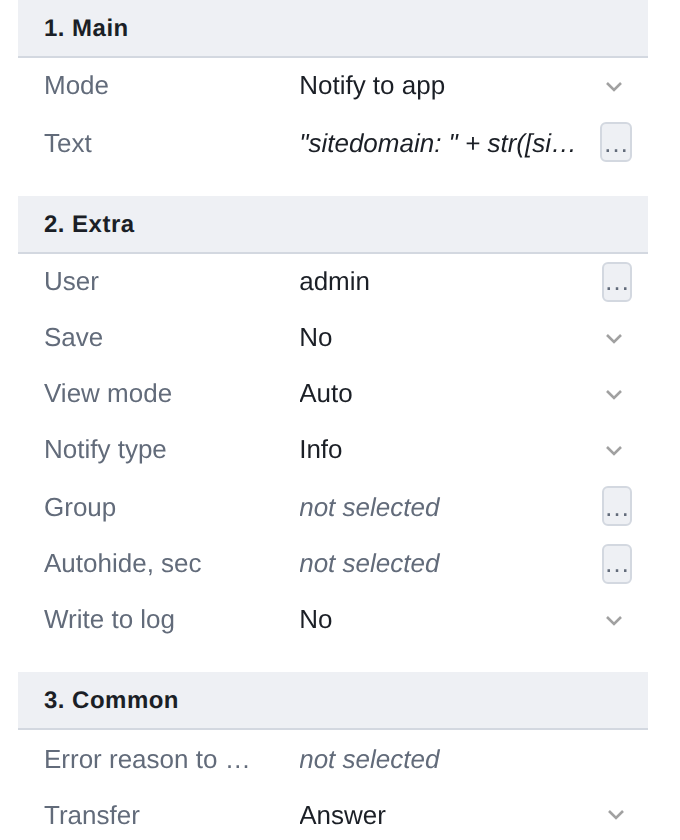
Let’s change one field - Mode - to "Sip Message".
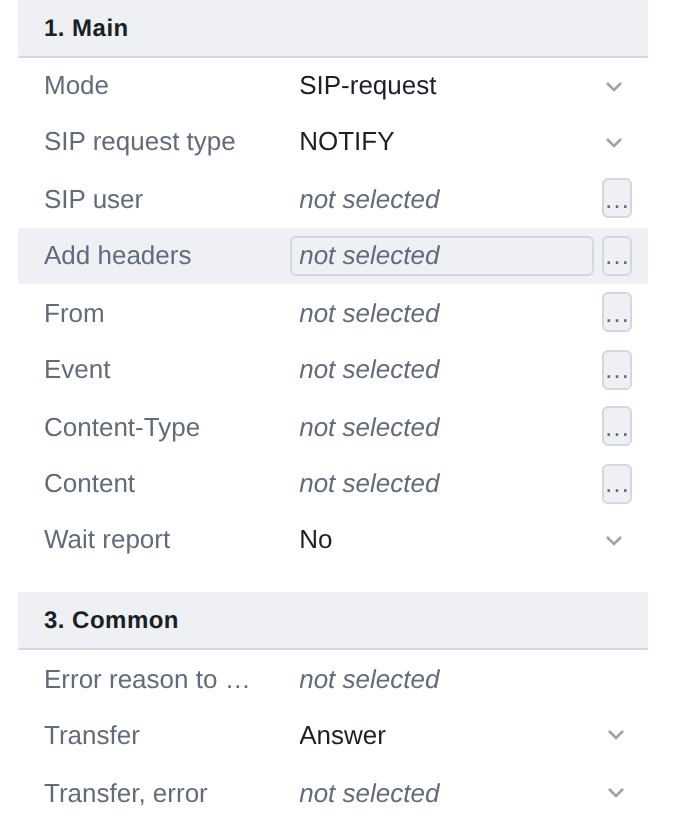
Everything has changed: the group “2. Additional", Text disappeared,
From, Event, Content-Type and the rest that was needed appeared
SIP message. The component is the same, the number is the same - only the mode is different.
The meaning is still there
This is the main thing to remember.
|
The hidden field is not cleared. The value you set remains in the script, it’s just not visible now. Return Mode back - and Text will return with the same content. |
Hence the consequence: the hidden field continues to exist on the server.
If you set something up and then switched modes, the old setting It didn’t disappear anywhere - it just stopped working.
Calculation order
Conditions are read from top to bottom, in the order in which the properties appear
in the panel. For each property, the values of those above it are taken.
Hence two things that sometimes surprise:
-
The chains work. If they hid the field, those who depended on it also disappeared:
for neighbors below, the hidden field is considered empty - value
remains in the script, but no longer affects their visibility. One
movement can remove half the panel.
-
Order matters. The field cannot depend on what is going on below him.
What to do if the field does not appear
-
See which field above in the list includes it. This is usually
_Mode_, _Type_ or a similar switch at the very top of the group.
  Place it in the desired position and the field will appear.
. *Check the component manual.* Conditions are specified together
with a description of the type: in the directory
(xref:scripts:component_types/index.adoc[Script Components]) specified,
at what values which field works.
-
If the field is needed, but there is nothing to enable it - most likely you selected wrong type of component.
|
The visibility condition may also be written incorrectly in the metadata. In this case, the editor does not crash and hide the field at random: the field is considered visible, and the error itself goes into the diagnostic log. So the "extra" field in the panel there is also a signal, only rare. |
| ◀ 10. Inspector panel | 12. Simple fields ▶ |
|---|