25. Running a service script
The service script does not wait for a call - it starts itself. Check that he
does what is intended, you can directly from the editor without going to others
platform applications.
How to launch
The Save and run item is under the checkbox next to the Save button. He is
only for service scripts - IVR scripts have nothing to run, they
starts the call.
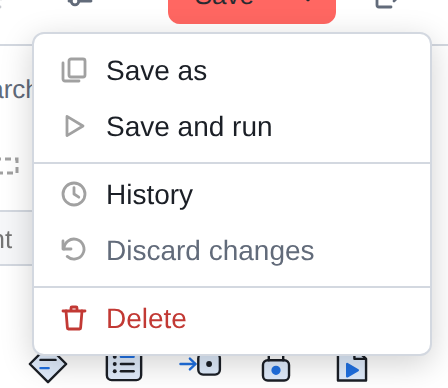
The procedure is exactly as in the title: first, the script is saved
to the server, then it starts. The version that appears on your screen is launched -
not the previous one and not the one that was on the server a minute ago.
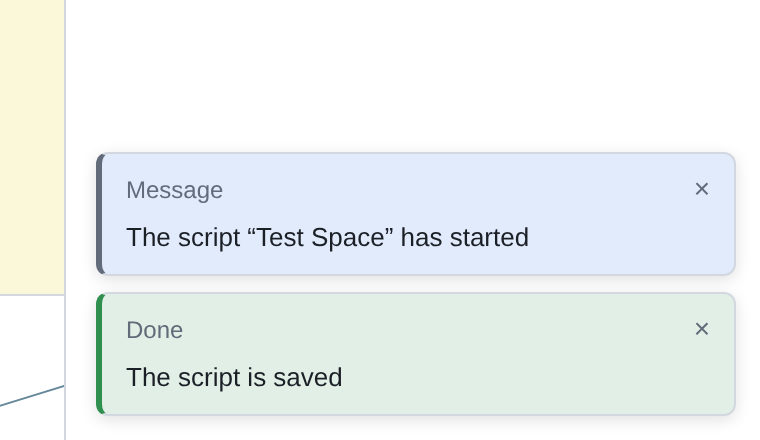
Two messages in a row: saved - launched. If saving fails
(version conflict, no connection), there will be no launch at all: there is nothing to launch.
Start parameters are empty
This is the main thing you need to know about such a launch.
|
Launch from the editor occurs without starting parameters. The handler starts with an empty set: what usually comes from outside - from the calling system, from the scheduler, from another scenario, does not come here. |
If the script strictly requires a start parameter, it is on such a launch
will fall or go the wrong way. This is not a breakdown of the editor or a breakdown of the script -
It’s just that the launch conditions are different.
How to get around this
The usual technique is temporary plugs.
-
Place Assignment at the beginning of the script and give them the values
which usually come from outside.
-
Run the script and see what happens.
-
Before saving in battle, turn off the plug - do not delete it.
When the component is turned off, the call goes through, and you can
turn it back on for the next test.
|
The stub should be signed: put it in a separate region with text “only for manual launch, disabled in battle.” Otherwise the next one opens the script, spends time figuring out why there is extra stuff at the beginning assignment. |
What is visible after launch
The editor does not show handlers: where they are now, how many there are and what they are for
ended - this can be seen on the side of the platform. The editor is working with the script, not with its instances
(about the difference - first chapter,
about the service scripts themselves -
But the editor sees something that is more important than it seems: notifications. The running script can send them itself - and they pop up as cards
in the lower right corner of the same window from which you launched it.
Debugging
This provides a working way to check service scripts,
without leaving the editor:
-
place notifications with the required text at interesting points in the script;
-
save and run;
-
read the cards as the script goes through them.
So you can see where he got to, and what was in the variables at each step -
including those very starting parameters that are not available during manual start.
This is what the next chapter is devoted to: